
- Back to SupportEZCODE · SETUP GUIDE
TBH-CORD2
Your scanner. Your settings.
Find the code you need below.
TBH-CORD2 · Check the model label on your scanner. Find your setting below. Scan with your EZCODE scanner, not your phone camera.
Scan only the code you need. These settings are for your TBH-CORD2 scanner.
Save to your phone: open a group image below, then touch and hold it and choose Save Image or Download image.01 / SETUPBasic settings
TBH-CORD2
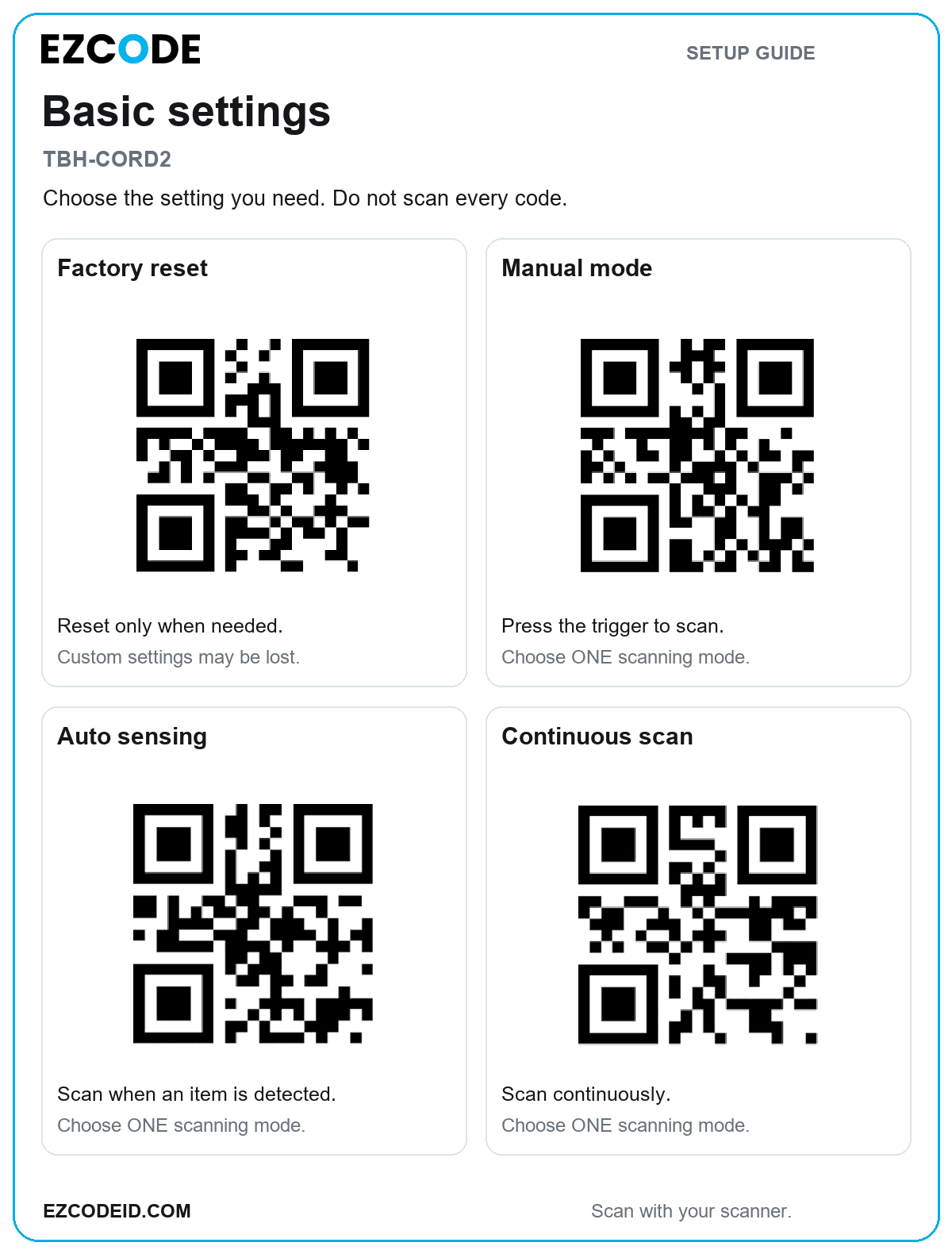
Choose the setting you need. Do not scan every code.
Open / save basic settings imageFactory reset
Reset only when needed.
Custom settings may be lost.
Manual mode
Press the trigger to scan.
Choose ONE scanning mode.
Auto sensing
Scan when an item is detected.
Choose ONE scanning mode.
Continuous scan
Scan continuously.
Choose ONE scanning mode.
02 / SETUPBarcode types
TBH-CORD2
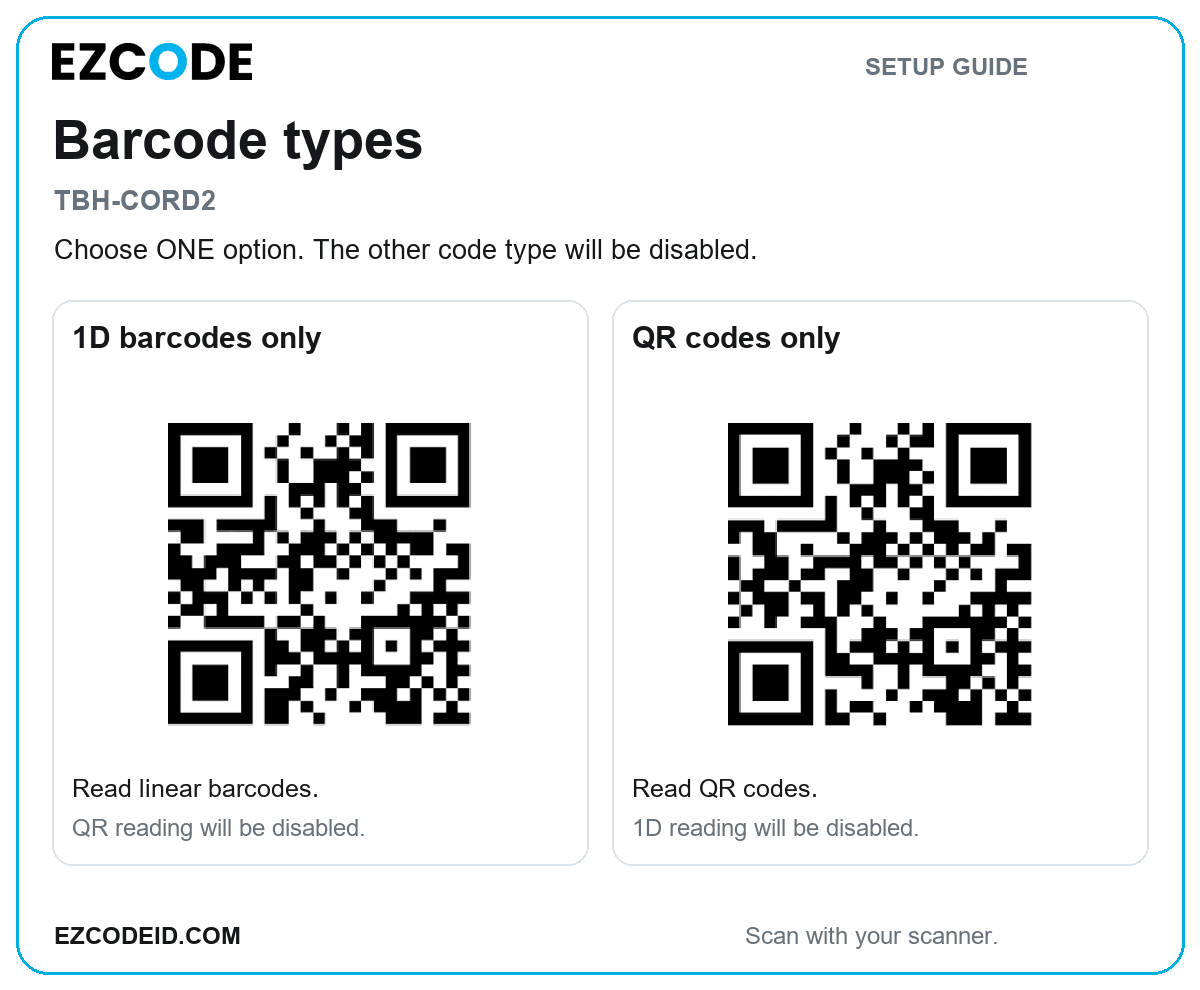
Choose ONE option. The other code type will be disabled.
Open / save barcode types image1D barcodes only
Read linear barcodes.
QR reading will be disabled.
QR codes only
Read QR codes.
1D reading will be disabled.
03 / SETUPBluetooth connection
TBH-CORD2
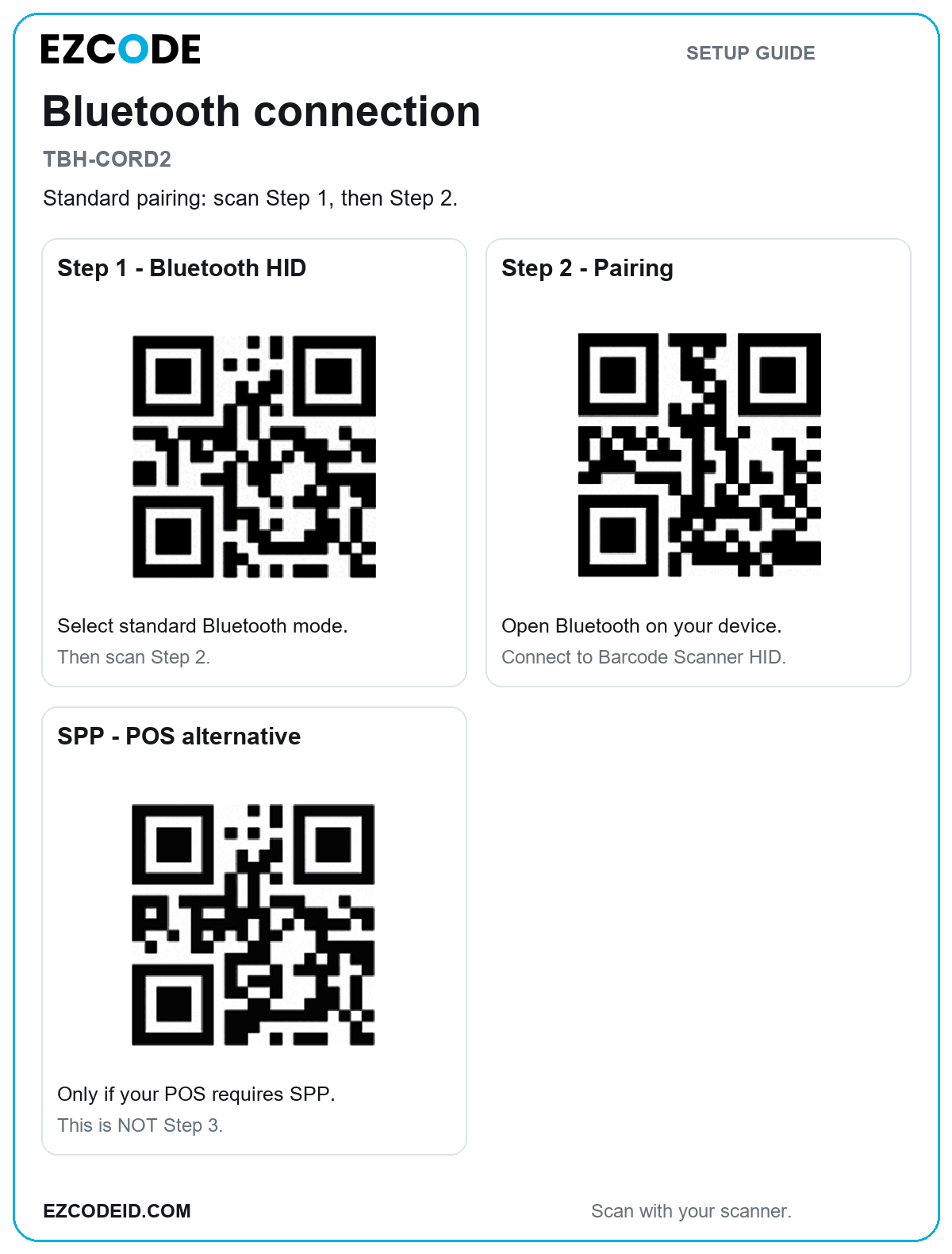
Standard pairing: scan Step 1, then Step 2.
Open / save bluetooth connection imageStep 1 · Bluetooth HID
Select standard Bluetooth mode.
Then scan Step 2.
Step 2 · Pairing
Open Bluetooth on your device.
Connect to Barcode Scanner HID.
SPP · POS alternative
Only if your POS requires SPP.
This is NOT Step 3.
04 / SETUP2.4G wireless
TBH-CORD2
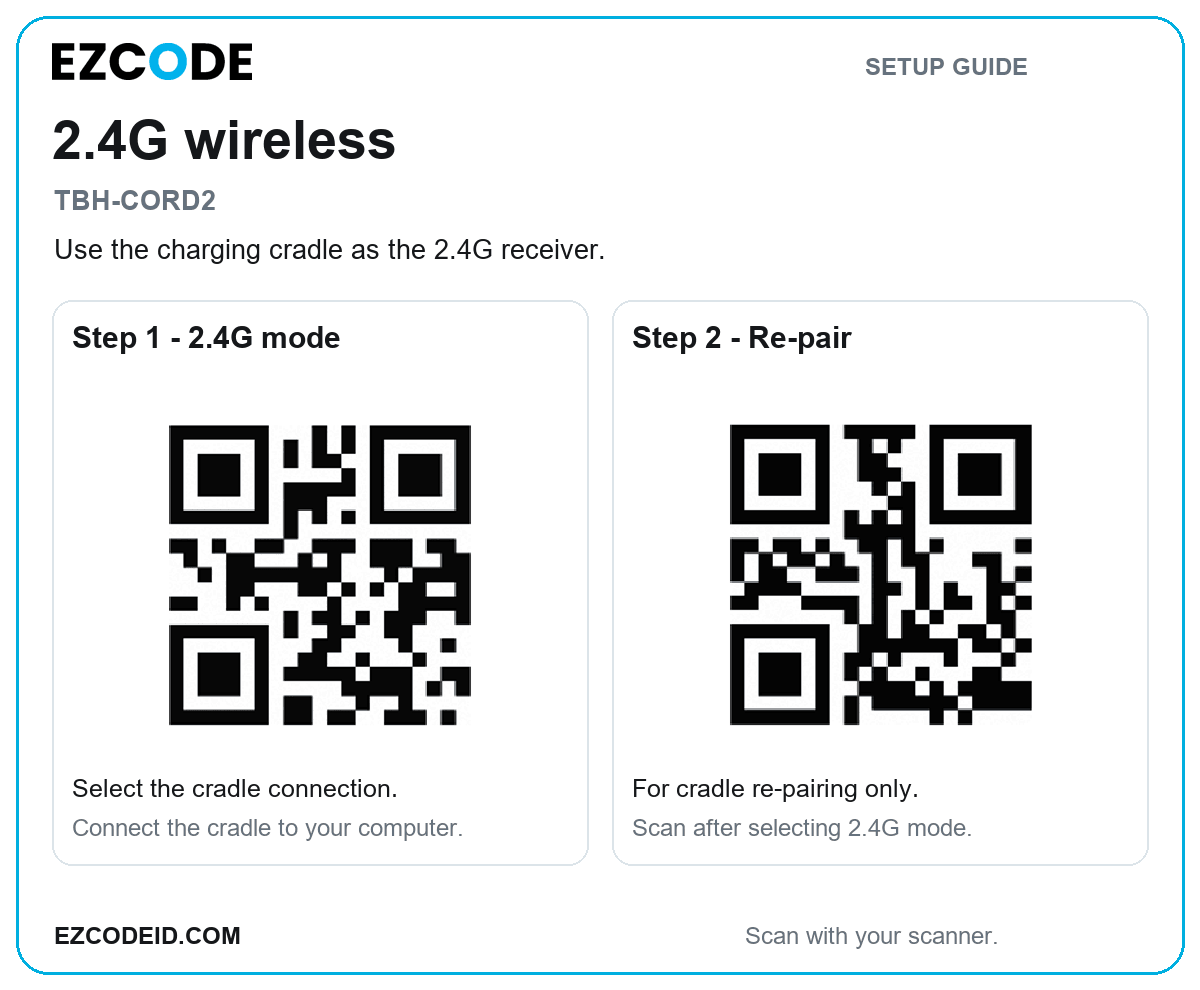
Use the charging cradle as the 2.4G receiver. Connect it to your computer by USB. Re-pair only when needed.
Open / save 2.4g wireless imageStep 1 · 2.4G mode
Select the cradle connection.
Connect the cradle to your computer.
Step 2 · Re-pair
For cradle re-pairing only.
Scan after selecting 2.4G mode.
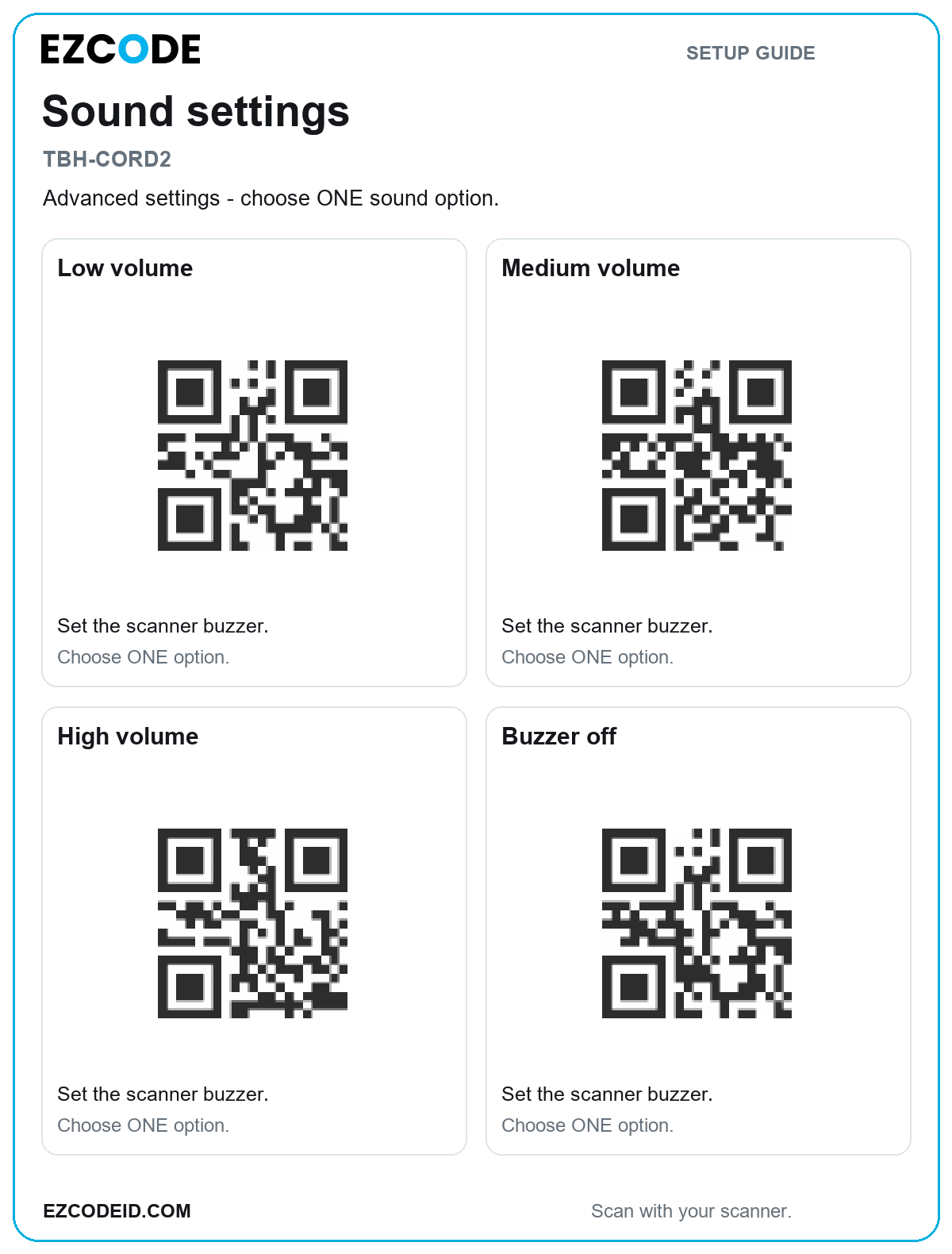
Sound settings
TBH-CORD2
Advanced settings — choose ONE sound option.
Open / save sound settings imageLow volume
Set the scanner buzzer.
Choose ONE option.
Medium volume
Set the scanner buzzer.
Choose ONE option.
High volume
Set the scanner buzzer.
Choose ONE option.
Buzzer off
Set the scanner buzzer.
Choose ONE option.