

Back to Support EZCODE / SUPPORT
DL-X9006
Wired desktop barcode scanner
Setup guideUSB connection / 1D and 2D scanning
Manual V25-08 ML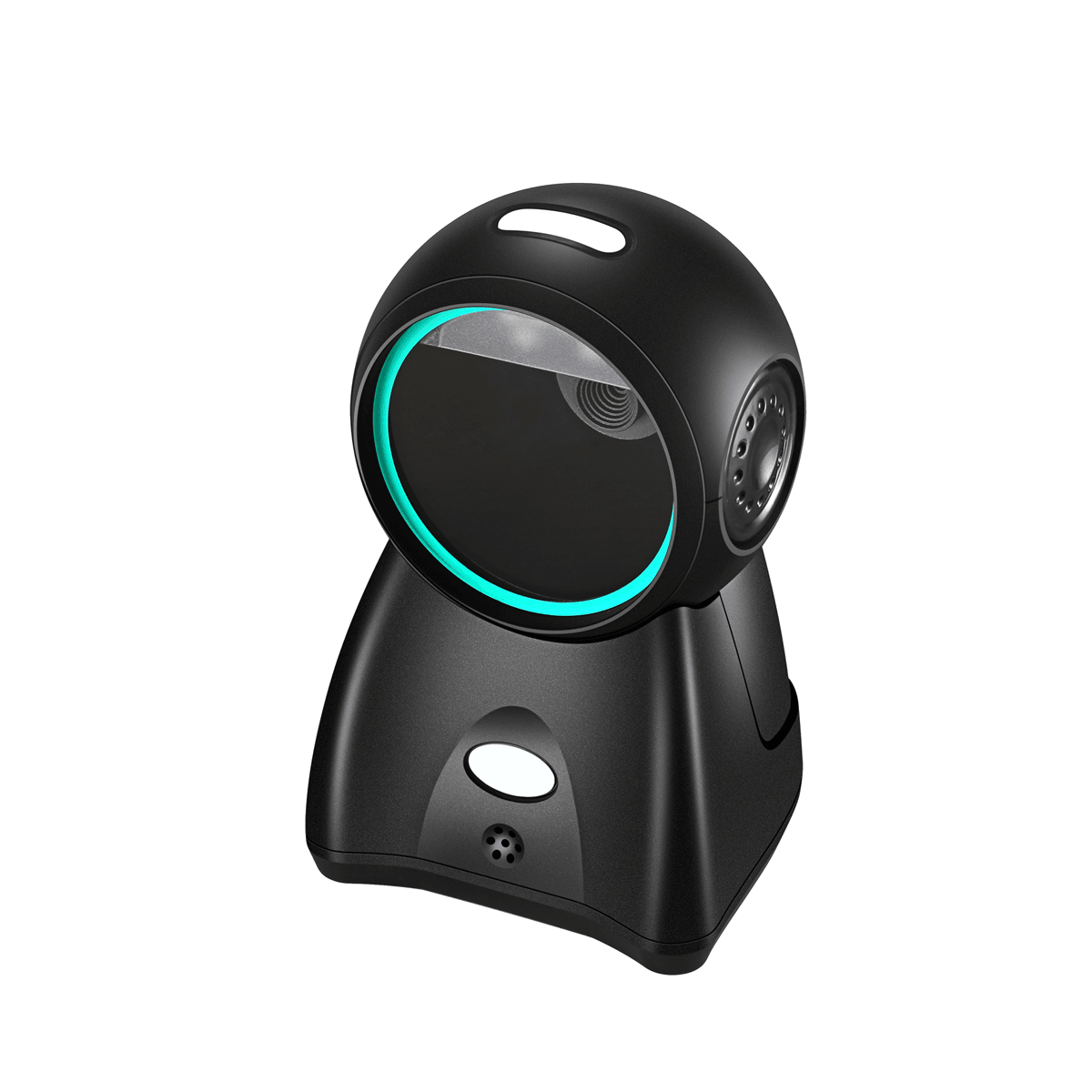 Scan only the setting you need. Use your scanner, not your phone camera. Codes are alternatives unless a sequence is stated.
Save to your phone: open a group image, then touch and hold to save it. Enlarge the image or print it if a code is difficult to scan.Reset and version
Direct setup: scan ONE required option. No Enter Setup or Exit Setup is needed for these quick codes. Factory reset removes custom settings. Version information only reads the current version.
Open / save reset and version imageFactory reset
Version information
QR-only and barcode-only
Direct setup: scan ONE required option. No Enter Setup or Exit Setup is needed for these quick codes. QR-only is not the same as all 2D formats. Use Factory reset to restore general reading.
Open / save qr-only and barcode-only imageQR codes only
1D barcodes only
Disable QR URL codes
Enable DM + GS1
Sound and volume
Direct setup: scan ONE required option. No Enter Setup or Exit Setup is needed for these quick codes. Choose the volume suitable for your counter.
Open / save sound and volume imageHigh volume
Medium volume
Low volume
Mute
Ending characters
Direct setup: scan ONE required option. No Enter Setup or Exit Setup is needed for these quick codes. Choose the ending sent after each scan.
Open / save ending characters imageEnter / CR
Enter + new line
TAB
Disable suffix characters
USB connection
Direct setup: scan ONE required option. No Enter Setup or Exit Setup is needed for these quick codes. USB-HID acts as a keyboard. Virtual Serial requires compatible serial software and may require a driver.
Open / save usb connection imageUSB-HID keyboard
USB Virtual Serial
Repeat-code delay
Direct setup: scan ONE required option. No Enter Setup or Exit Setup is needed for these quick codes. Choose the interval for reading the same barcode again.
Open / save repeat-code delay image300 ms
500 ms
1 second
2 seconds
USB upload speed
Direct setup: scan ONE required option. No Enter Setup or Exit Setup is needed for these quick codes. Choose a slower speed if your software misses characters.
Open / save usb upload speed imageFast
Medium
Low-medium
Slow
Back to SupportAdvanced settings & reference
These settings change the data sent to your application. Start with Enter Setup, scan the required setting and parameters, Save only when requested, then Exit Setup. These are not the direct quick codes above.
Advanced setup controls
For advanced groups below: Enter Setup > setting / parameters > Save if required > Exit Setup. Do not scan both alternatives. Quick setup groups above do not require these two codes.
Open / save advanced setup controls imageEnter Setup
Exit Setup
Letter case
Scan Enter Setup, then the required option, then Exit Setup. Choose ONE letter-case option.
Open / save letter case imageNo conversion
Invert letter case
All uppercase
All lowercase
Custom prefix and suffix
Enter Setup > Set custom prefix/suffix > hexadecimal data digits > Save parameters > Enable custom prefix/suffix > Exit Setup. Prefix example CODE: 4,3,4,F,4,4,4,5. Custom suffix follows the same procedure. To disable: Enter Setup > Disable > Exit Setup.
Open / save custom prefix and suffix imageEnable custom prefix
Disable custom prefix
Set custom prefix
Enable custom suffix
Disable custom suffix
Set custom suffix
GS character replacement
Enter Setup > Set GS replacement > hexadecimal data digits > Save parameters > Enable GS replacement > Exit Setup. Example ####: 2,3,2,3,2,3,2,3. This changes transmitted data, not the printed barcode.
Open / save gs character replacement imageEnable GS replacement
Disable GS replacement
Set GS replacement
GS replacement shortcuts
Scan Enter Setup, then the required option, then Exit Setup. Choose one replacement for the GS separator. Non-printable replacement has separate allow/prohibit controls.
Open / save gs replacement shortcuts imageGS replacement: GS
GS replacement: <GS>
GS replacement: (GS)
GS replacement: [GS]
GS replacement: 'GS'
GS replacement: `GS`
GS replacement: |
GS replacement: ?
GS replacement: *
GS replacement: <0x1D>
Allow non-printable replacement
Prohibit non-printable replacement
Inverted barcode reading
Scan Enter Setup, then the required option, then Exit Setup. Inverted codes are light on a dark background. These controls affect inverted reading, not whether all 1D or 2D formats are enabled.
Open / save inverted barcode reading imageEnable 1D inversion
Disable 1D inversion
Enable 2D inversion
Disable 2D inversion
CODE39 and CODE32
Scan Enter Setup, then the required option, then Exit Setup. Change full ASCII and prefix output only when required by your application.
Open / save code39 and code32 imageCODE39: enable full ASCII
CODE39: disable full ASCII
CODE32: send A prefix
CODE32: do not send A prefix
Send CODE32 prefix
Do not send CODE32 prefix
ITF and other 1D formats
Scan Enter Setup, then the required option, then Exit Setup. ITF family includes ITF-25, ITF-14, ITF-6, Deutsche12 and Deutsche14.
Open / save itf and other 1d formats imageITF family: allow scanning
ITF family: prohibit scanning
ITF family: disable inversion
ITF family: enable inversion
Brazilian bank: allow scanning
Brazilian bank: prohibit scanning
Industrial25: allow scanning
Industrial25: prohibit scanning
Industrial25: disable inversion
Industrial25: enable inversion
Matrix25: allow scanning
Matrix25: prohibit scanning
Standard25: allow scanning
Standard25: prohibit scanning
MSI Plessey: allow scanning
MSI Plessey: prohibit scanning
Plessey: allow scanning
Plessey: prohibit scanning
RSS14: allow scanning
RSS14: prohibit scanning
Data Matrix, PDF and QR
Scan Enter Setup, then the required option, then Exit Setup. Choose the specific format and required operation. ECI controls QR data interpretation.
Open / save data matrix, pdf and qr imageData Matrix: allow scanning
Data Matrix: prohibit scanning
Data Matrix: enable inversion
Data Matrix: disable inversion
MaxiCode: allow scanning
MaxiCode: prohibit scanning
PDF417: allow scanning
PDF417: prohibit scanning
PDF417: enable inversion
PDF417: disable inversion
MicroPDF: allow scanning
MicroPDF: prohibit scanning
MicroPDF: enable inversion
MicroPDF: disable inversion
QR: allow scanning
QR: prohibit scanning
QR: enable inversion
QR: disable inversion
Enable QR ECI
Disable QR ECI
MicroQR, Hanxin and Aztec
Scan Enter Setup, then the required option, then Exit Setup. Choose allow/prohibit reading or the inversion option for the selected format.
Open / save microqr, hanxin and aztec imageMicroQR: allow scanning
MicroQR: prohibit scanning
MicroQR: enable inversion
MicroQR: disable inversion
Hanxin: allow scanning
Hanxin: prohibit scanning
Hanxin: enable inversion
Hanxin: disable inversion
Aztec: allow scanning
Aztec: prohibit scanning
Aztec: enable inversion
Aztec: disable inversion
Keyboard layouts - A
Scan Enter Setup, then the required option, then Exit Setup. Before changing layouts, disable Chinese output and select USB-HID. Match the keyboard layout on your computer.
Open / save keyboard layouts - a imageKeyboard: US (default)
Keyboard: Belgium
Keyboard: Brazil
Keyboard: Canada
Keyboard: Czechoslovakia
Keyboard: Denmark
Keyboard: Finland
Keyboard: France
Keyboard: Germany / Austria
Keyboard: Greece
Keyboard: Hungary
Keyboard: Israel
Keyboard: Italy
Keyboard: Latin America
Keyboard: Netherlands
Keyboard: Norway
Keyboard: Poland
Keyboard: Portugal
Keyboard: Romania
Keyboard: Russia CP1251
Keyboard layouts - B
Scan Enter Setup, then the required option, then Exit Setup. Before changing layouts, disable Chinese output and select USB-HID. SHIFT JIS to Russia is a special preset; see the original encoding example.
Open / save keyboard layouts - b imageKeyboard: Slovakia
Keyboard: Spain
Keyboard: Sweden
Keyboard: Switzerland
Keyboard: Turkey F
Keyboard: Turkey Q
Keyboard: UK
Keyboard: Japan
Keyboard: Italy 142
Keyboard: Russia KOI8-R
Keyboard: International
Keyboard: Arabic
Keyboard: Brazil Portuguese
Keyboard: English extended
Keyboard: SHIFT JIS to Russia
Keyboard: Thailand
Keyboard: Vietnam
Keyboard: Vietnam keyboard
Keyboard: Simplified Chinese
Keyboard: Traditional Chinese
Language quick presets
Direct setup: scan ONE required option. No Enter Setup or Exit Setup is needed for these quick codes. Language presets from the manual. Use only when needed for Vietnamese, Thai or Russian data.
Open / save language quick presets imageVietnamese
Thai
Russian
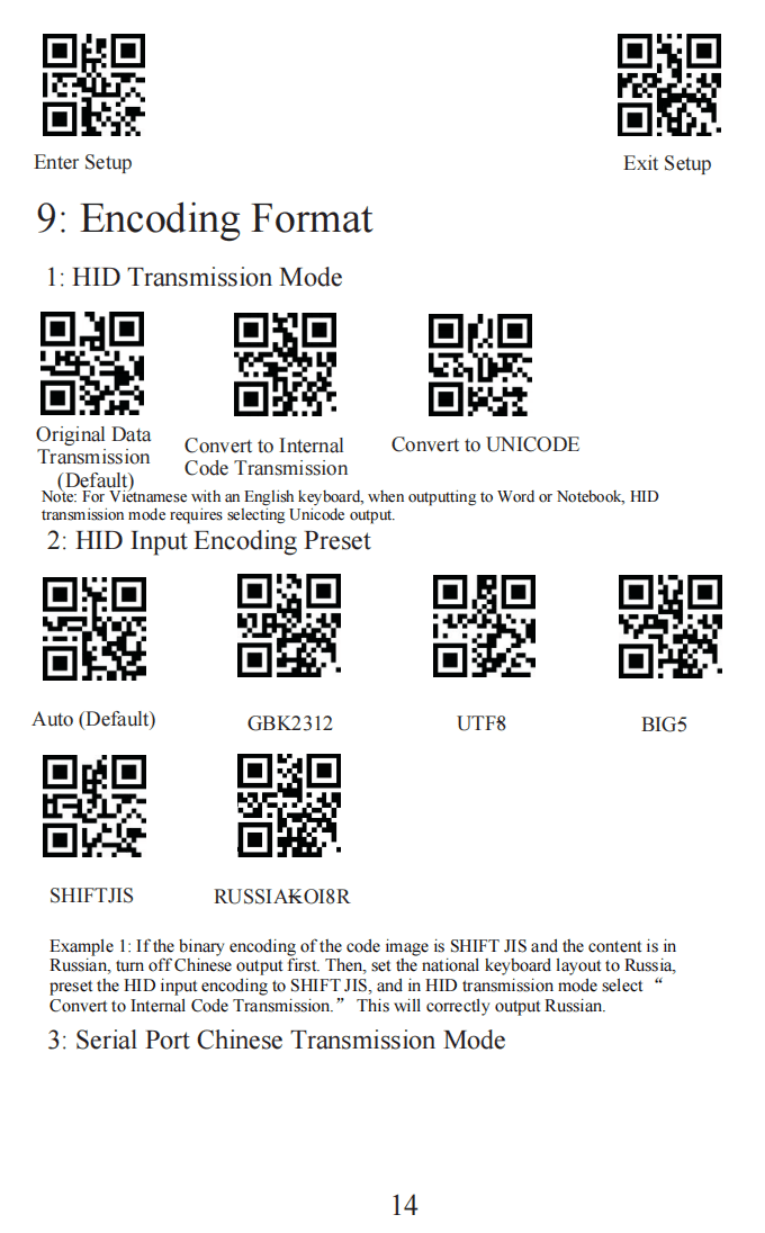
HID encoding
Scan Enter Setup, then the required option, then Exit Setup. Match the transmission format and input encoding to the barcode data and your host software. For Vietnamese with an English keyboard in Word/Notepad, the manual specifies Unicode output.
Open / save hid encoding imageHID: original data (default)
HID: internal code
HID: Unicode
Input: Auto (default)
Input: GBK2312
Input: UTF8
Input: BIG5
Input: SHIFTJIS
Input: RUSSIAKOI8R
Serial encoding and Chinese output
Scan Enter Setup, then the required option, then Exit Setup. Serial encoding applies to serial software. Chinese ticket options are specialist settings, not normal checkout defaults.
Open / save serial encoding and chinese output imageSerial: original data (default)
Serial: internal code
Serial: Unicode big-endian
Serial: UTF8
Serial: Unicode little-endian
Disable Chinese output (default)
Chinese output to TXT
Chinese output to WORD
Chinese ticket: disable
Chinese ticket: State Tax
TTL interface
Direct setup: scan ONE required option. No Enter Setup or Exit Setup is needed for these quick codes. For hardware integrations only, with compatible TTL wiring. Not Bluetooth pairing; do not select TTL for normal USB keyboard use.
Open / save ttl interface imageTTL 9600
TTL 115200
Parameter data codes
Scan these only when a parameter operation asks for digits. Enter hexadecimal digits in order, then Save parameters; finish with Exit Setup. Do not scan every digit.
Open / save parameter data codes imageData digit 0
Data digit 1
Data digit 2
Data digit 3
Data digit 4
Data digit 5
Data digit 6
Data digit 7
Data digit 8
Data digit 9
Data digit A
Data digit B
Data digit C
Data digit D
Data digit E
Data digit F
Save parameters
Original manual reference
Original manufacturer instructions and examples. Example test barcodes are demonstrations, not configuration codes. Use the setting cards above for everyday setup.
Setup sequence and custom prefix example
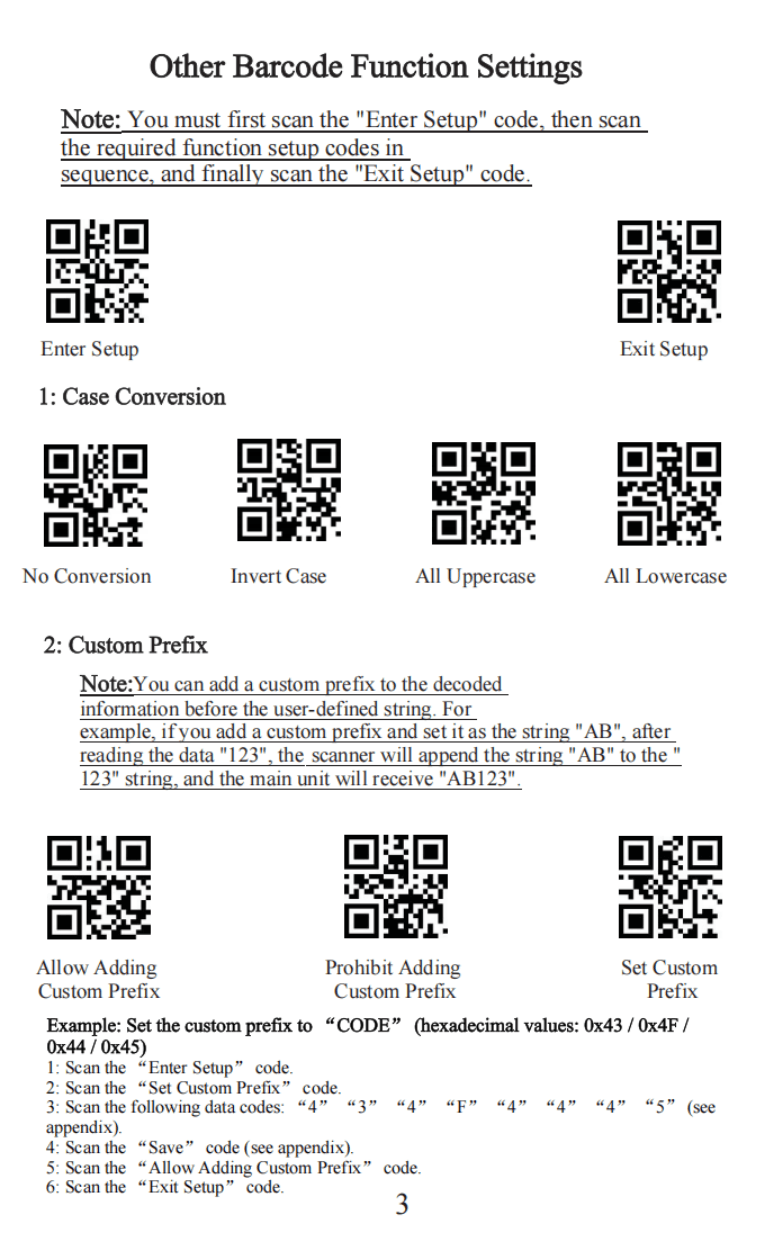 Open / save original page
Custom suffix and GS replacement example
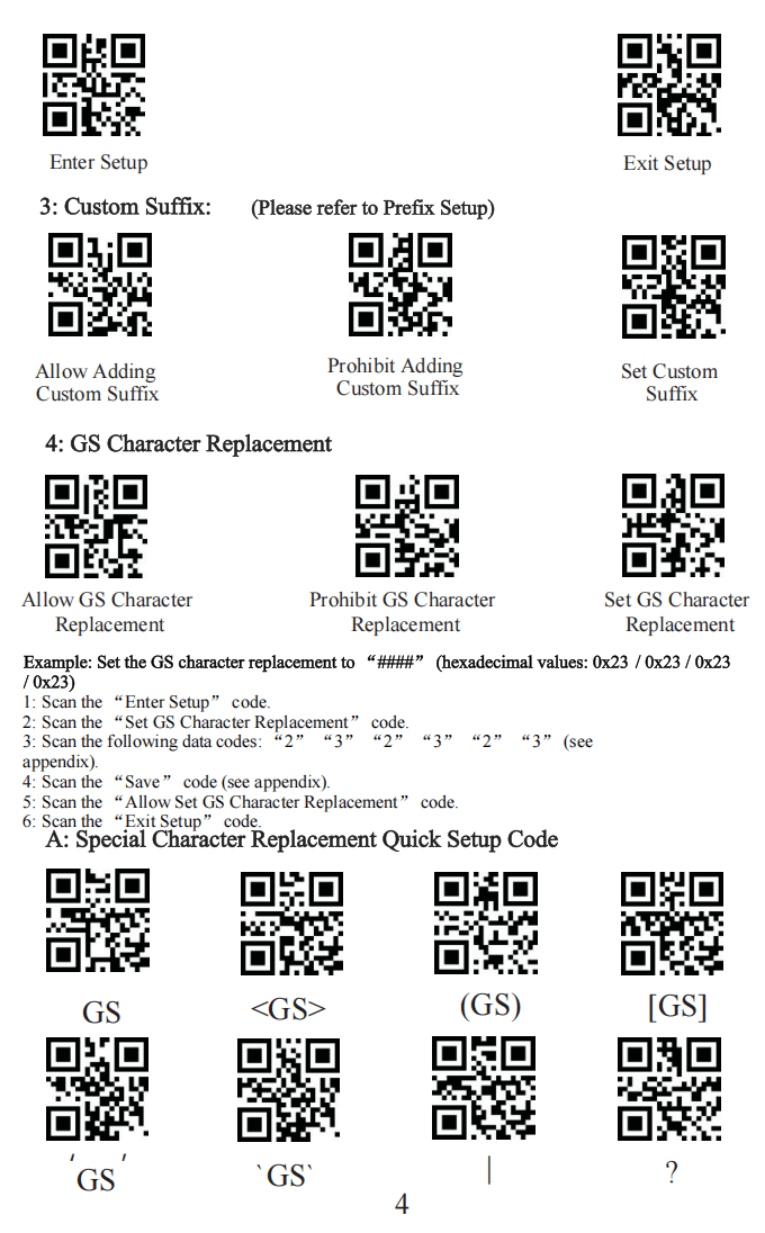 Open / save original page
ASCII character tables
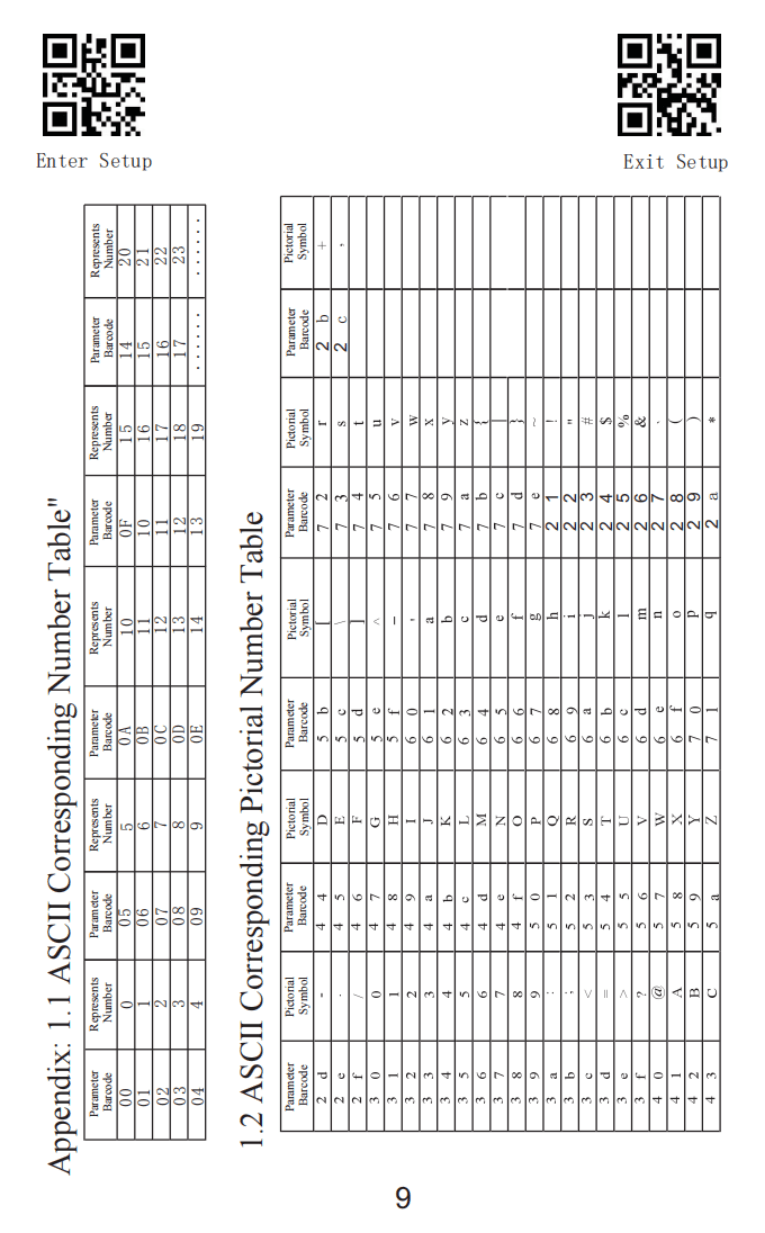 Open / save original page
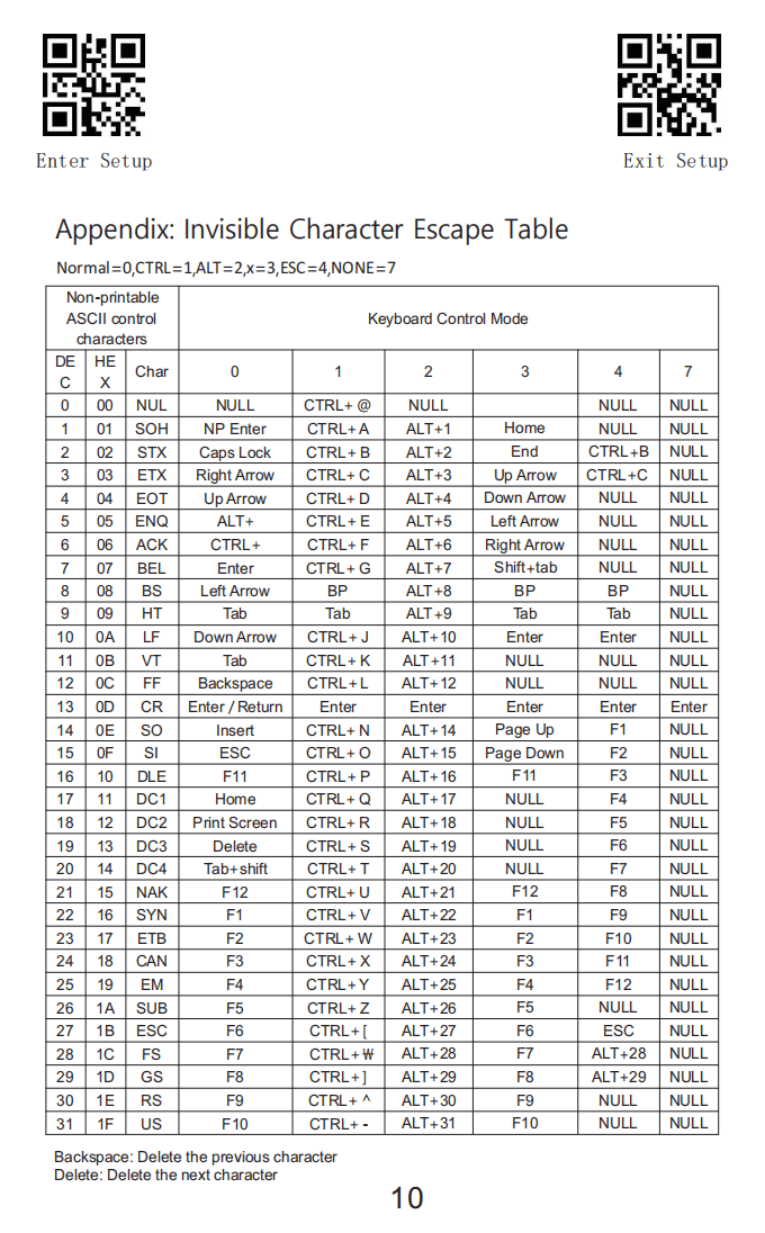
Invisible character escape table
 Open / save original page
Encoding instructions and example
 Open / save original page