
Back to Support EZCODE / SUPPORT
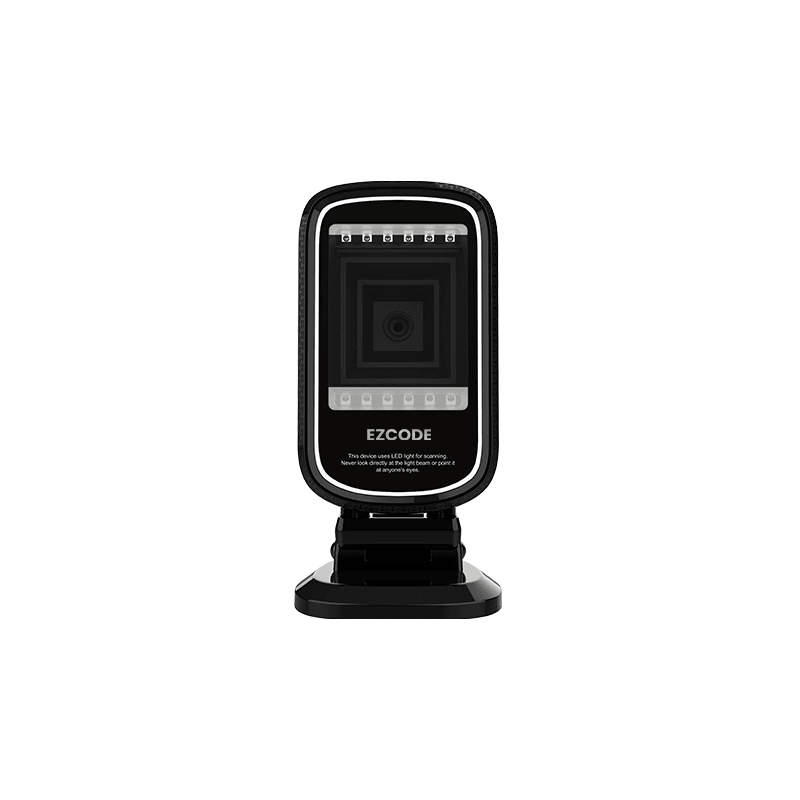
GT-9207G
2D desktop barcode scanner
Setup guideManual updated 15 September 2026
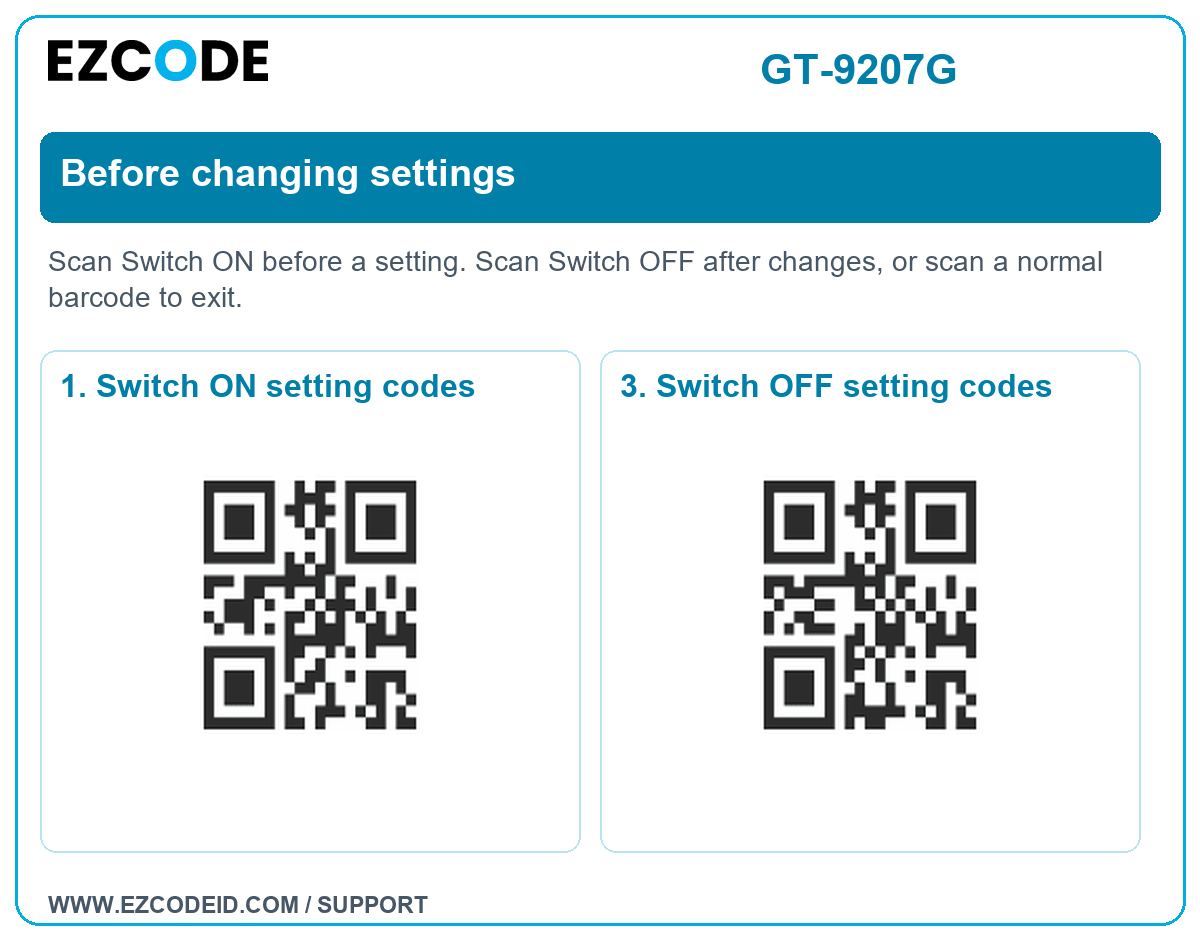
 Scan only the setting you need. Use your scanner, not your phone camera. These settings are alternatives unless a sequence is stated.
Save to your phone: open a group image, then touch and hold to save it. A 1D laser scanner may not read an LCD screen; print the image at a clear size if needed.Important: Switch ON setting codes → scan the required setting → Switch OFF setting codes. Scanning a normal barcode also exits setup.
Before changing settings
Scan Switch ON before a setting. Scan Switch OFF after changes, or scan a normal barcode to exit.
Open / save group image1. Switch ON setting codes
3. Switch OFF setting codes
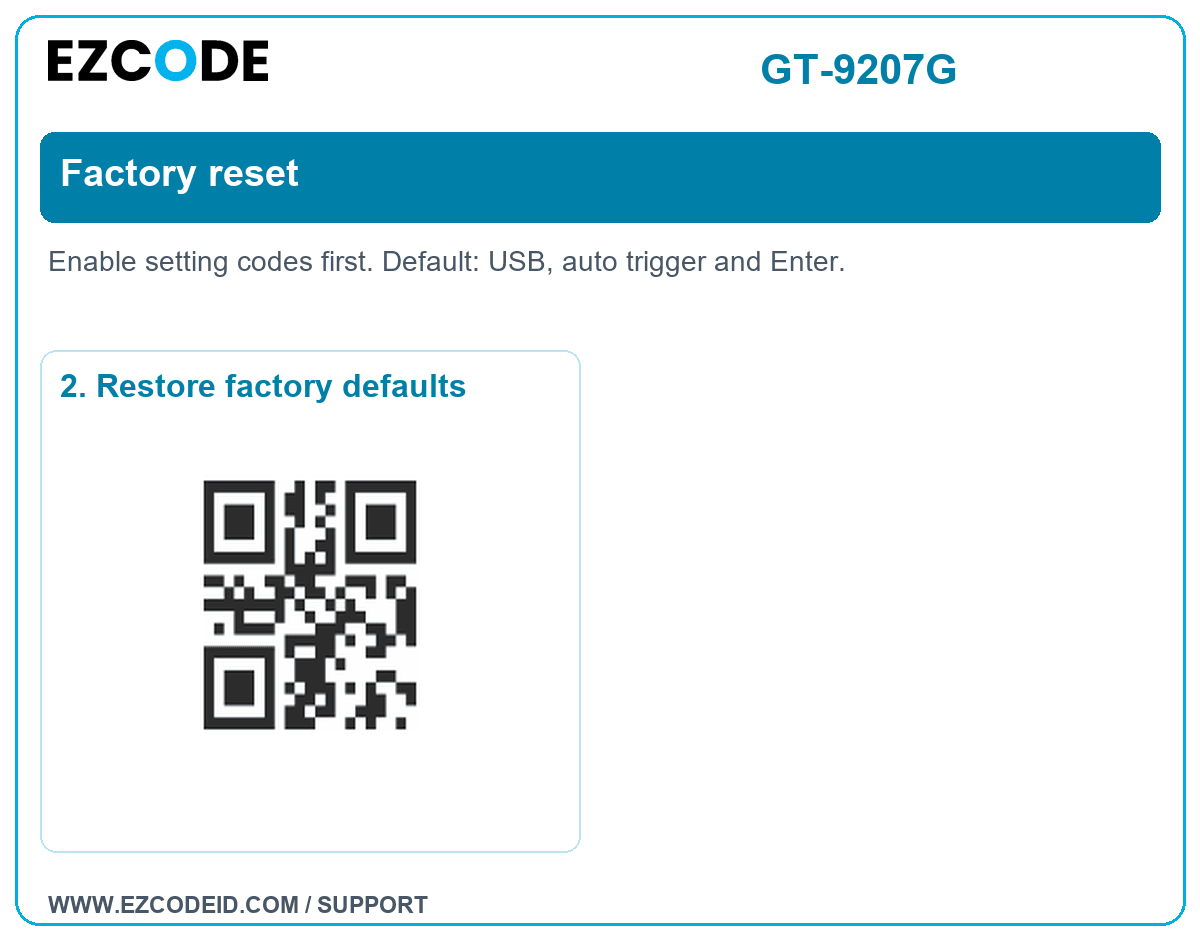
Factory reset
Enable setting codes first. Default: USB, auto trigger and Enter.
Open / save group image2. Restore factory defaults
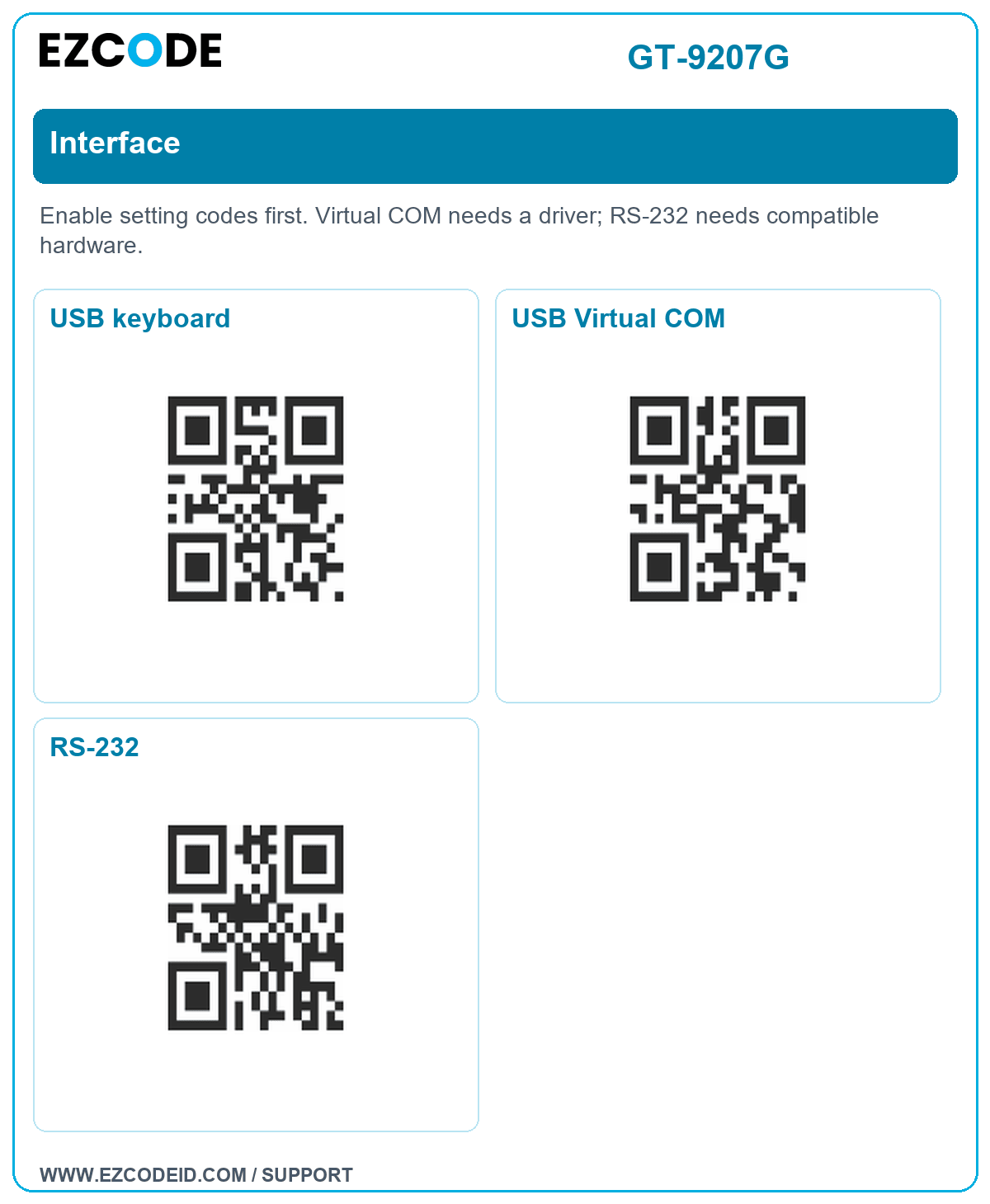
Interface
Enable setting codes first. Virtual COM needs a driver; RS-232 needs compatible hardware.
Open / save group imageUSB keyboard
USB Virtual COM
RS-232
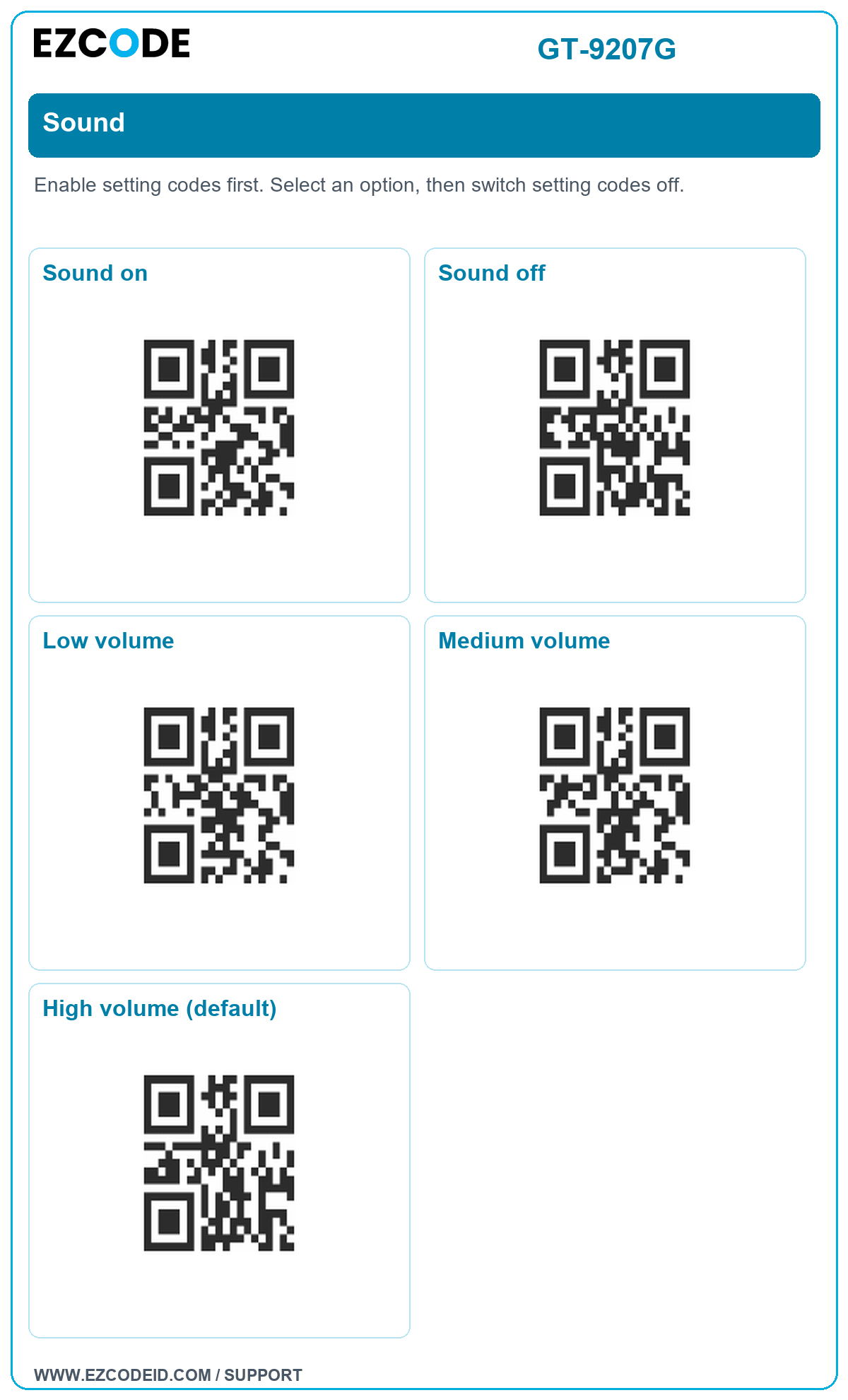
Sound
Enable setting codes first. Select an option, then switch setting codes off.
Open / save group imageSound on
Sound off
Low volume
Medium volume
High volume (default)
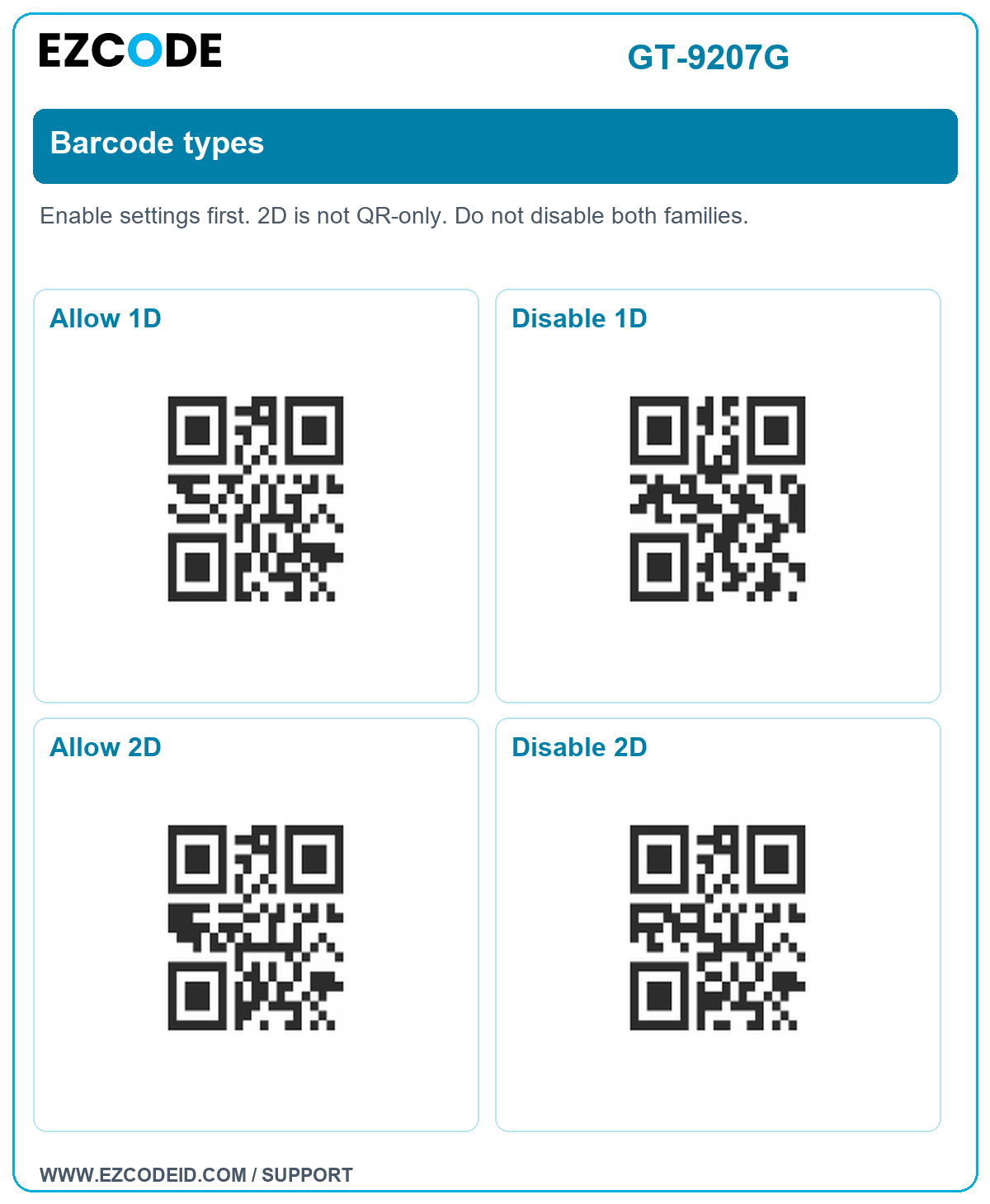
Barcode types
Enable settings first. 2D is not QR-only. Do not disable both families.
Open / save group imageAllow 1D
Disable 1D
Allow 2D
Disable 2D
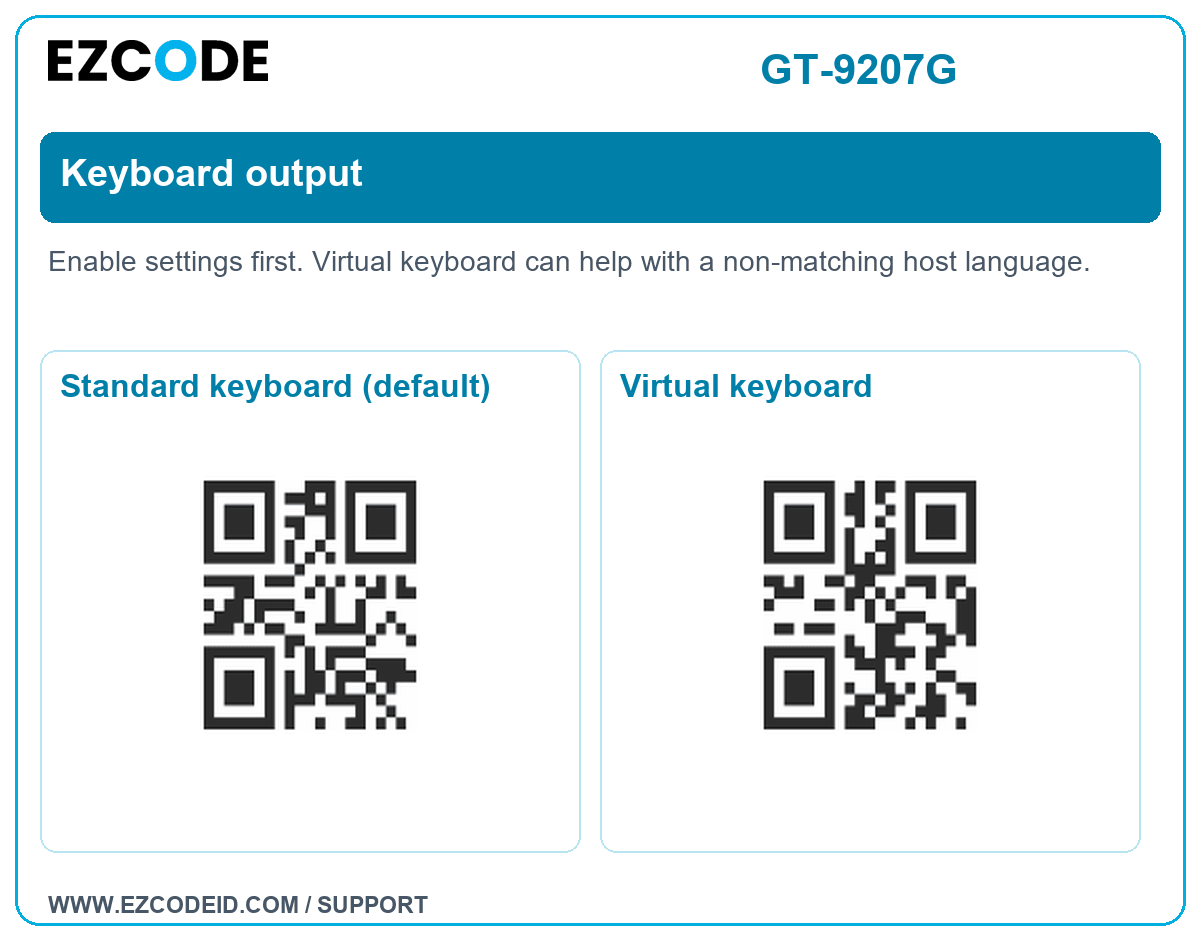
Keyboard output
Enable settings first. Virtual keyboard can help with a non-matching host language.
Open / save group imageStandard keyboard (default)
Virtual keyboard
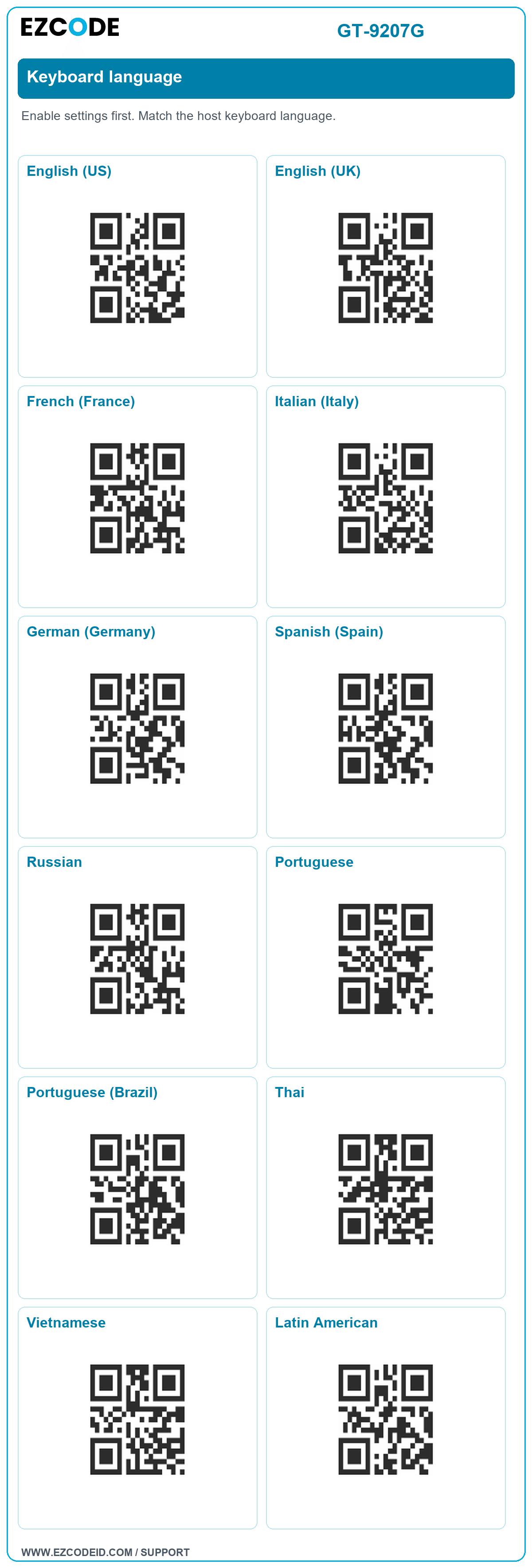
Keyboard language
Enable settings first. Match the host keyboard language.
Open / save group imageEnglish (US)
English (UK)
French (France)
Italian (Italy)
German (Germany)
Spanish (Spain)
Russian
Portuguese
Portuguese (Brazil)
Thai
Vietnamese
Latin American
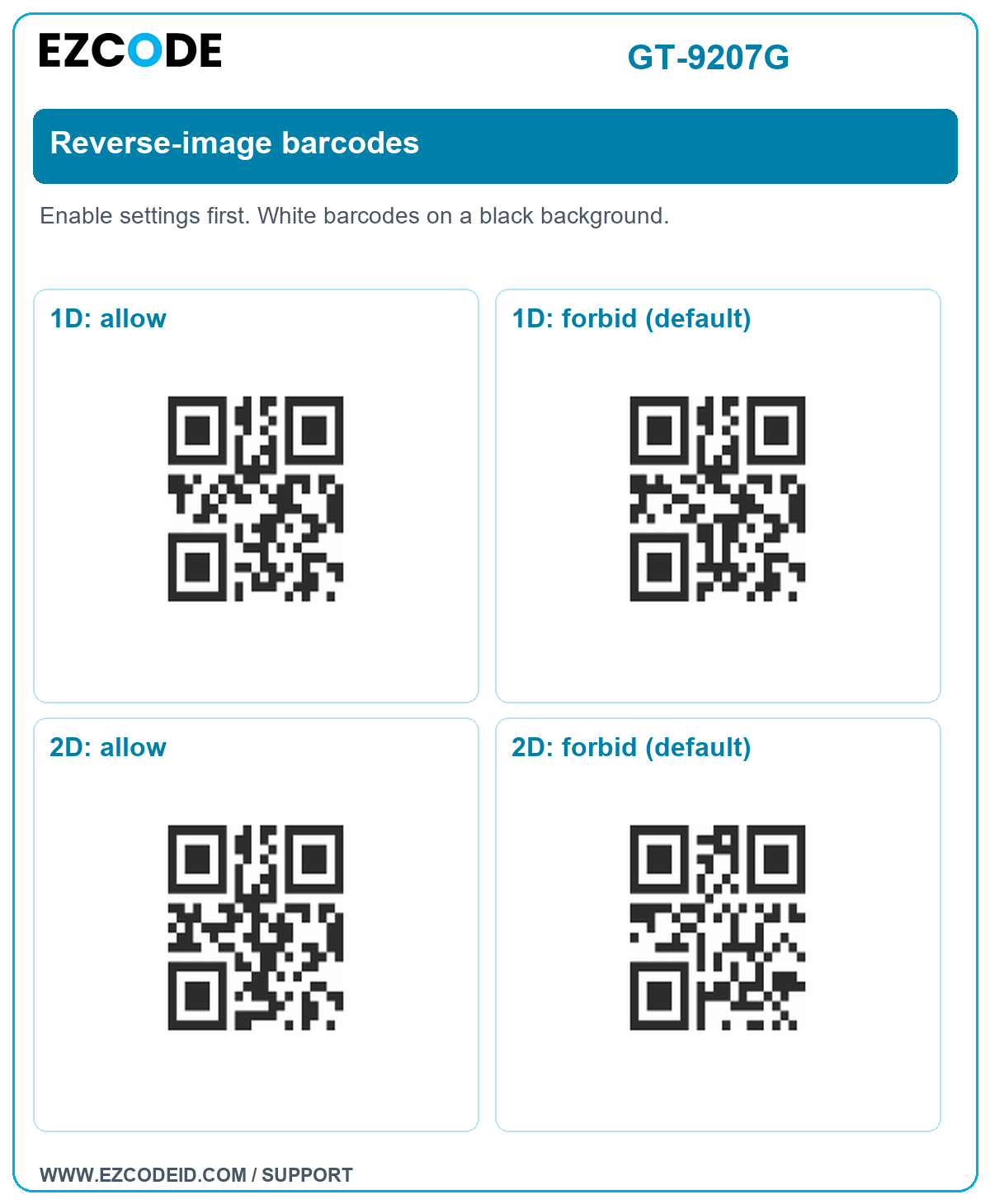
Reverse-image barcodes
Enable settings first. White barcodes on a black background.
Open / save group image1D: allow
1D: forbid (default)
2D: allow
2D: forbid (default)
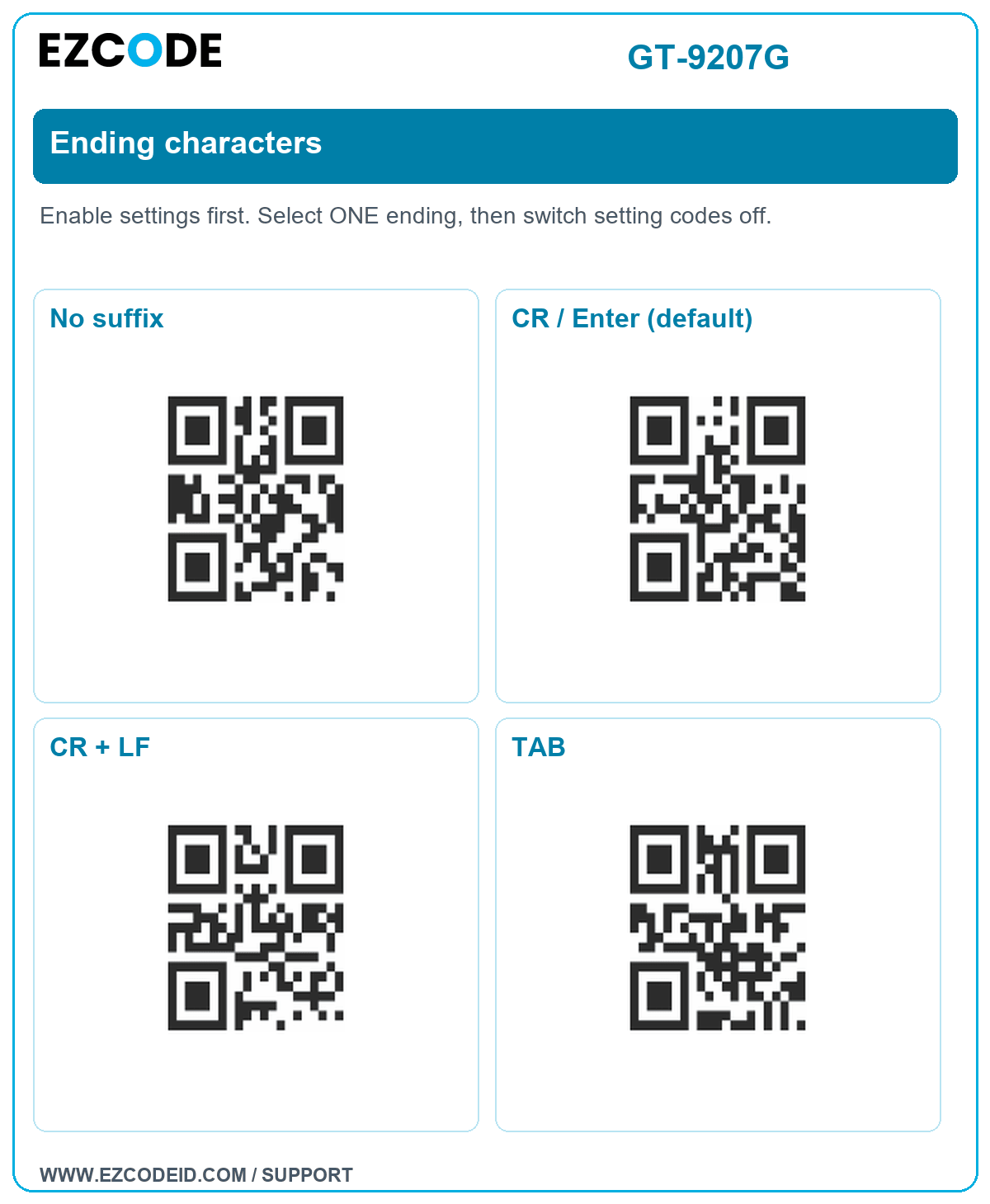
Ending characters
Enable settings first. Select ONE ending, then switch setting codes off.
Open / save group imageNo suffix
CR / Enter (default)
CR + LF
TAB