
Back to Support EZCODE / SUPPORT
JWH-S
Wireless 1D laser scanner
Setup guideManual updated 15 September 2026
 Scan only the setting you need. Use your scanner, not your phone camera. These settings are alternatives unless a sequence is stated.
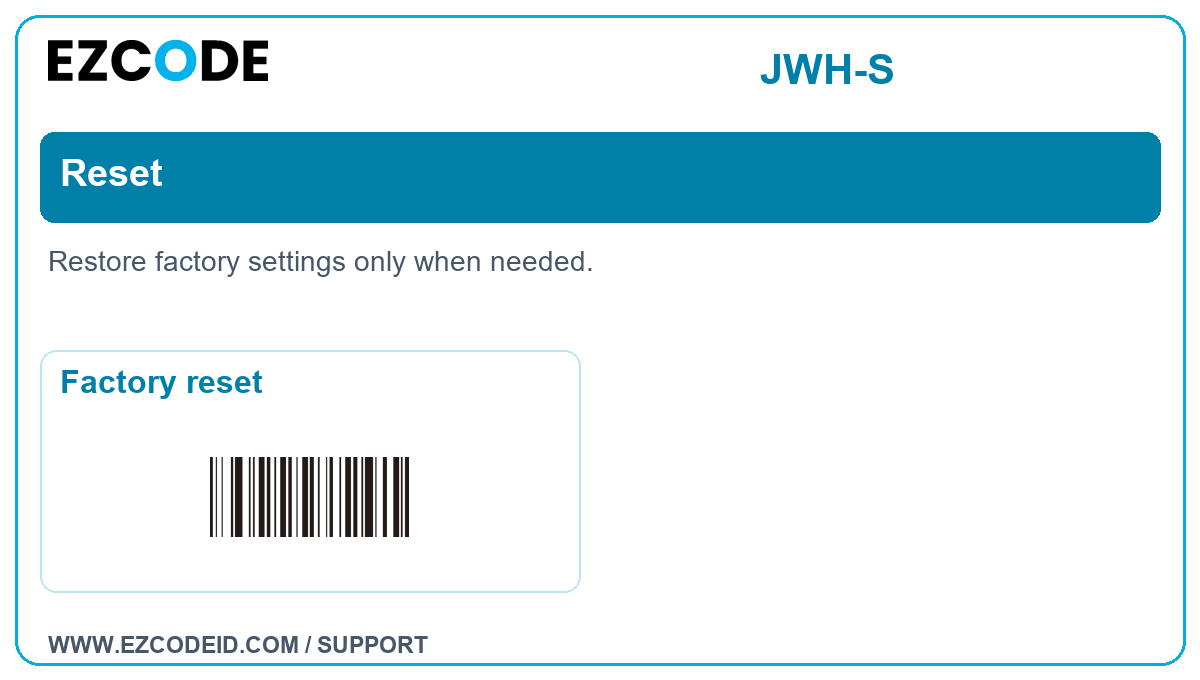
Save to your phone: open a group image, then touch and hold to save it. A 1D laser scanner may not read an LCD screen; print the image at a clear size if needed.Reset
Restore factory settings only when needed.
Open / save group imageFactory reset
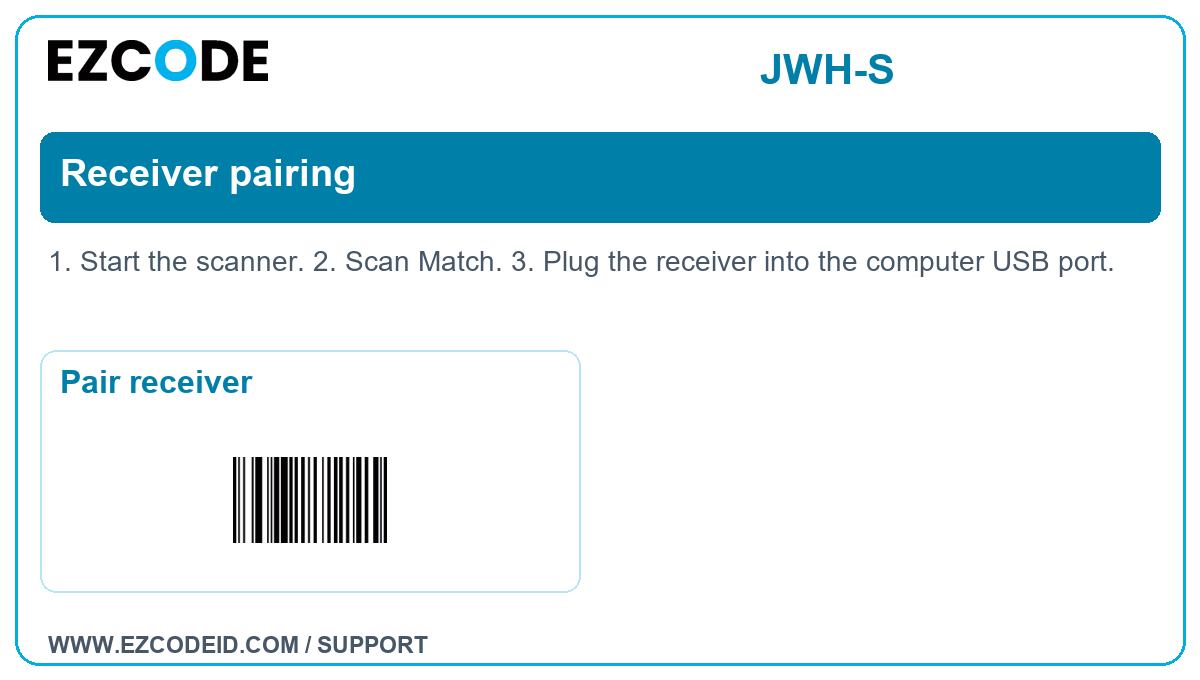
Receiver pairing
1. Start the scanner. 2. Scan Match. 3. Plug the receiver into the computer USB port.
Open / save group imagePair receiver
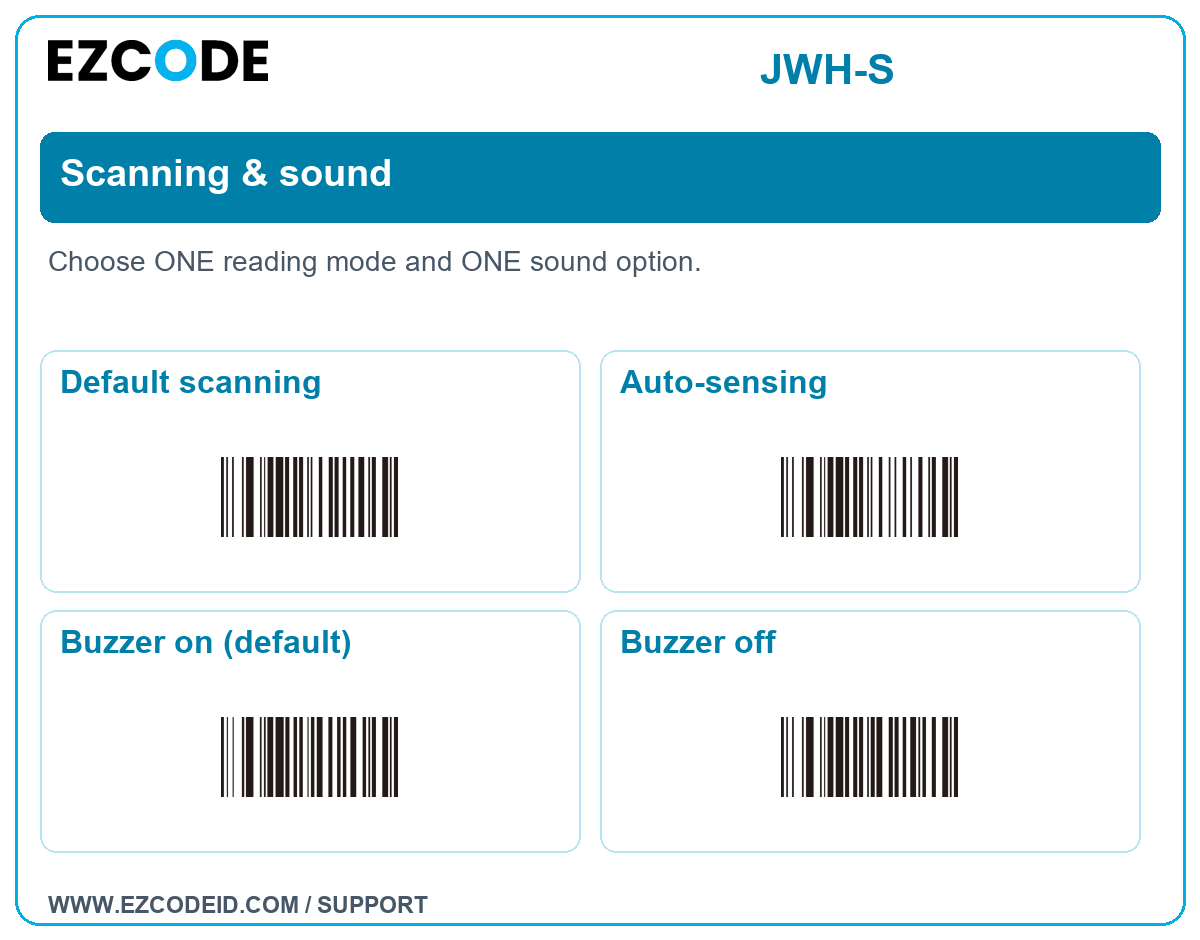
Scanning & sound
Choose ONE reading mode and ONE sound option.
Open / save group imageDefault scanning
Auto-sensing
Buzzer on (default)
Buzzer off
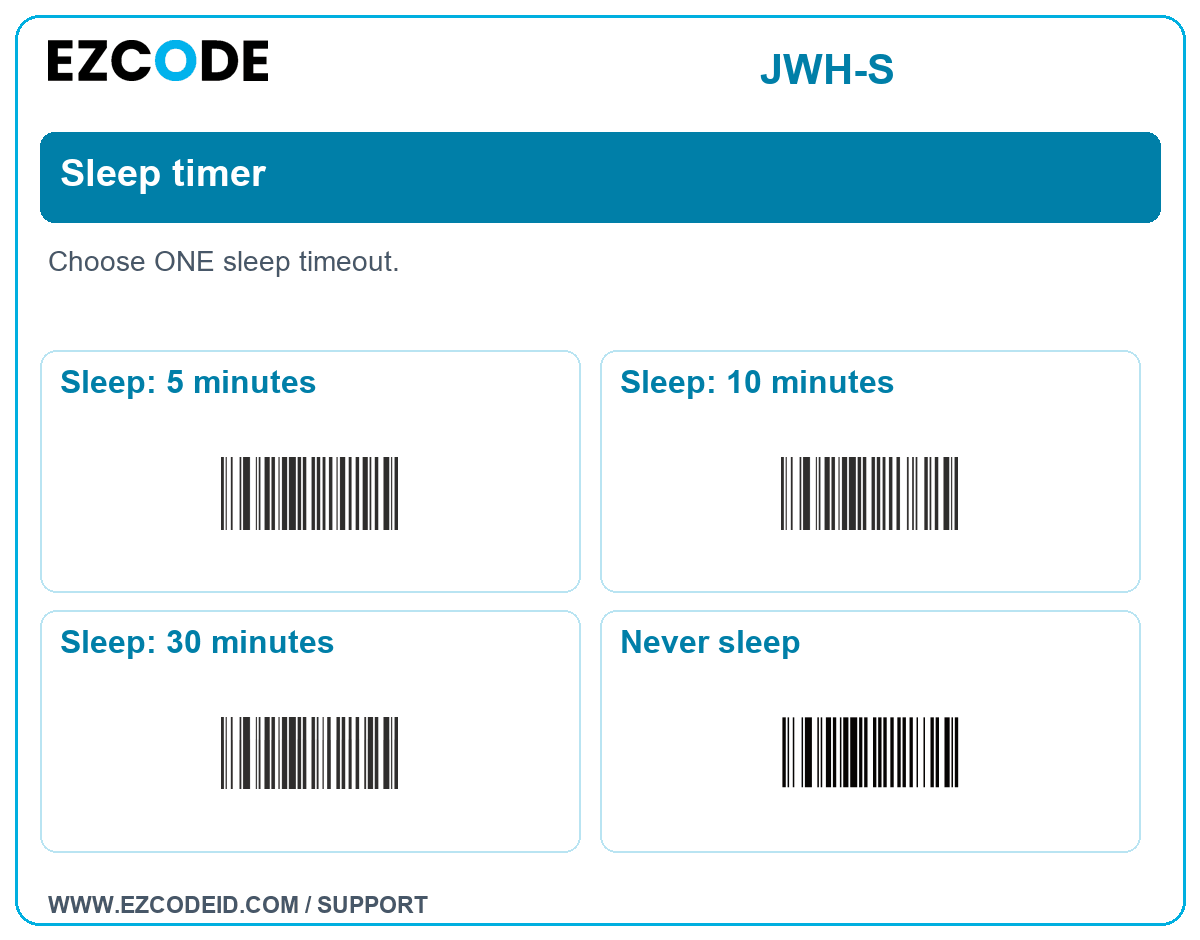
Sleep timer
Choose ONE sleep timeout.
Open / save group imageSleep: 5 minutes
Sleep: 10 minutes
Sleep: 30 minutes
Never sleep
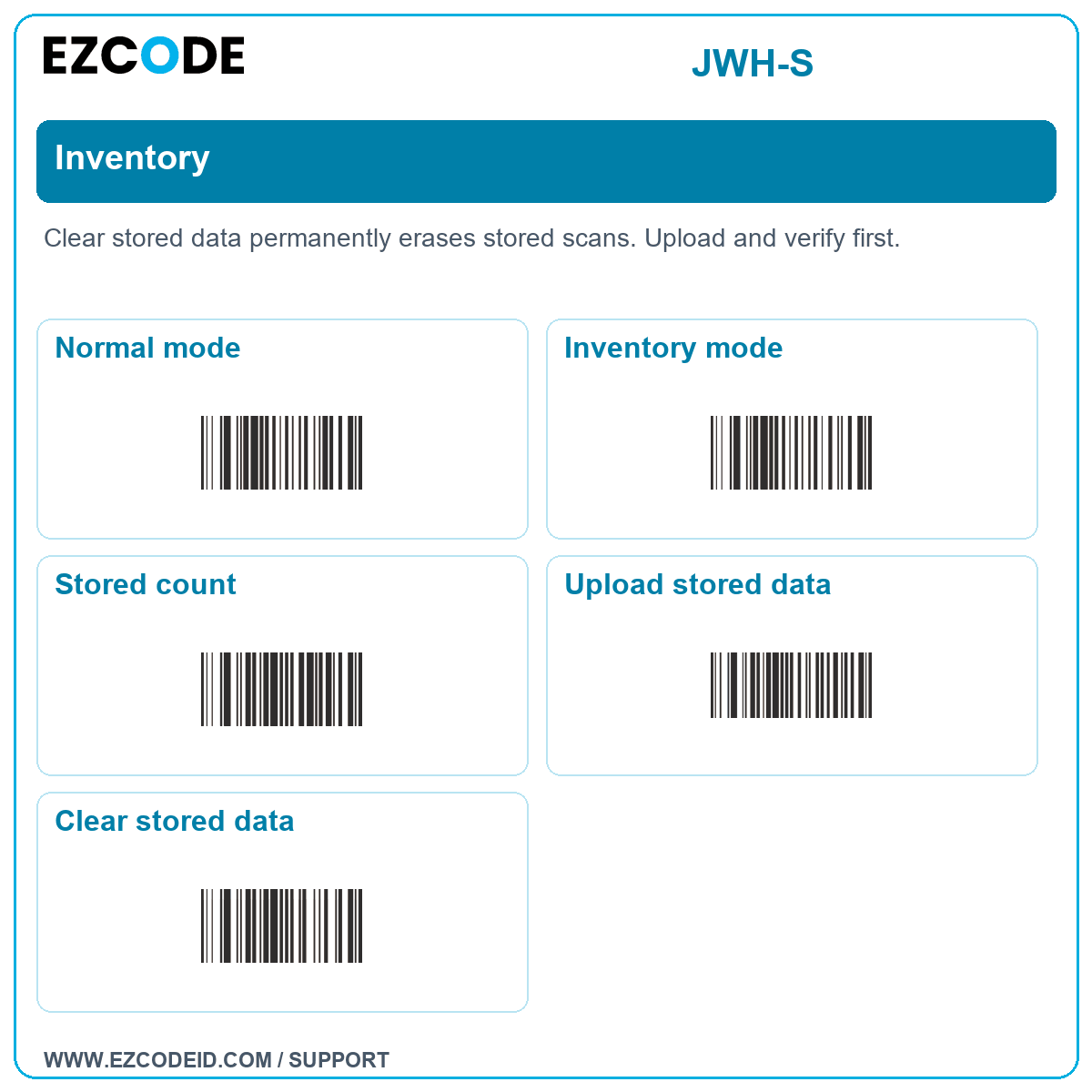
Inventory
Clear stored data permanently erases stored scans. Upload and verify first.
Open / save group imageNormal mode
Inventory mode
Stored count
Upload stored data
Clear stored data
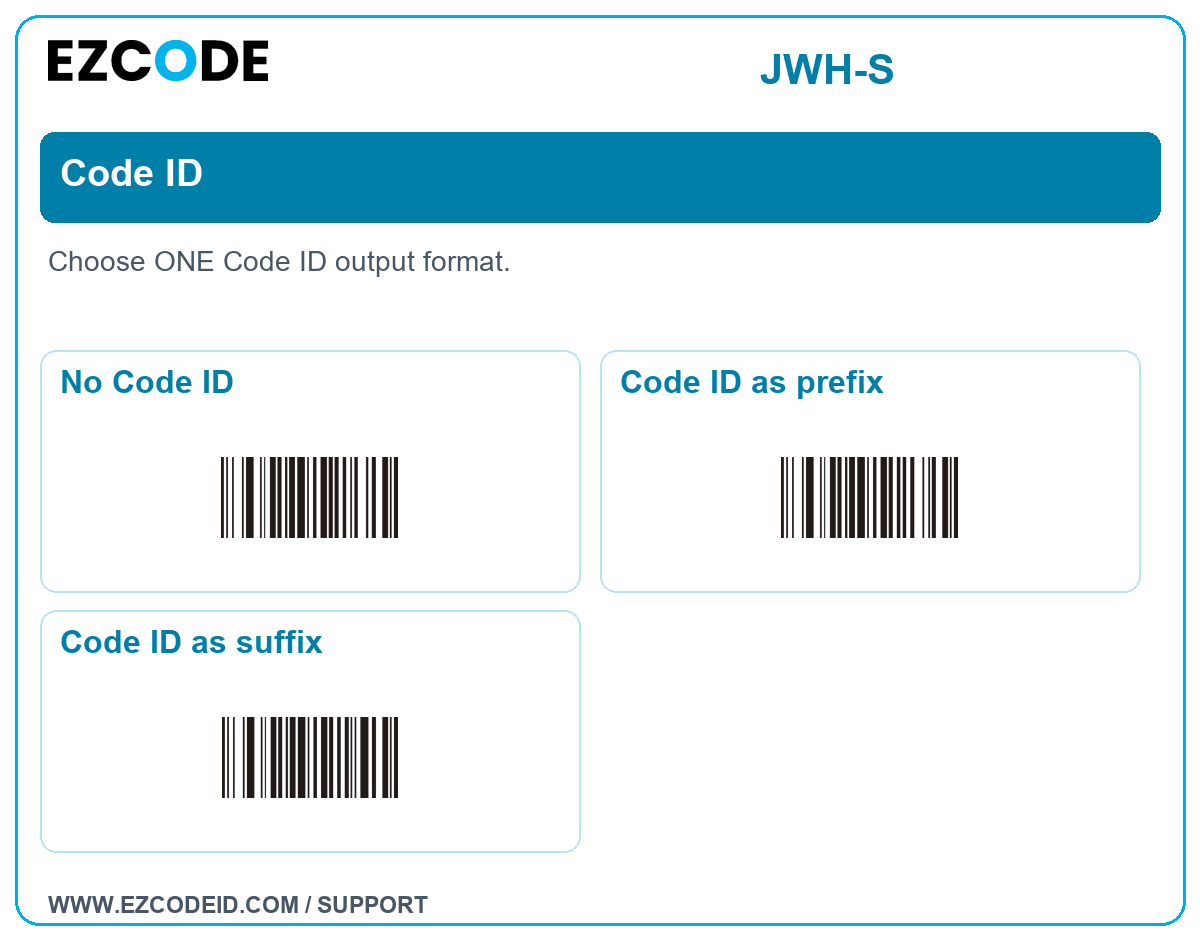
Code ID
Choose ONE Code ID output format.
Open / save group imageNo Code ID
Code ID as prefix
Code ID as suffix
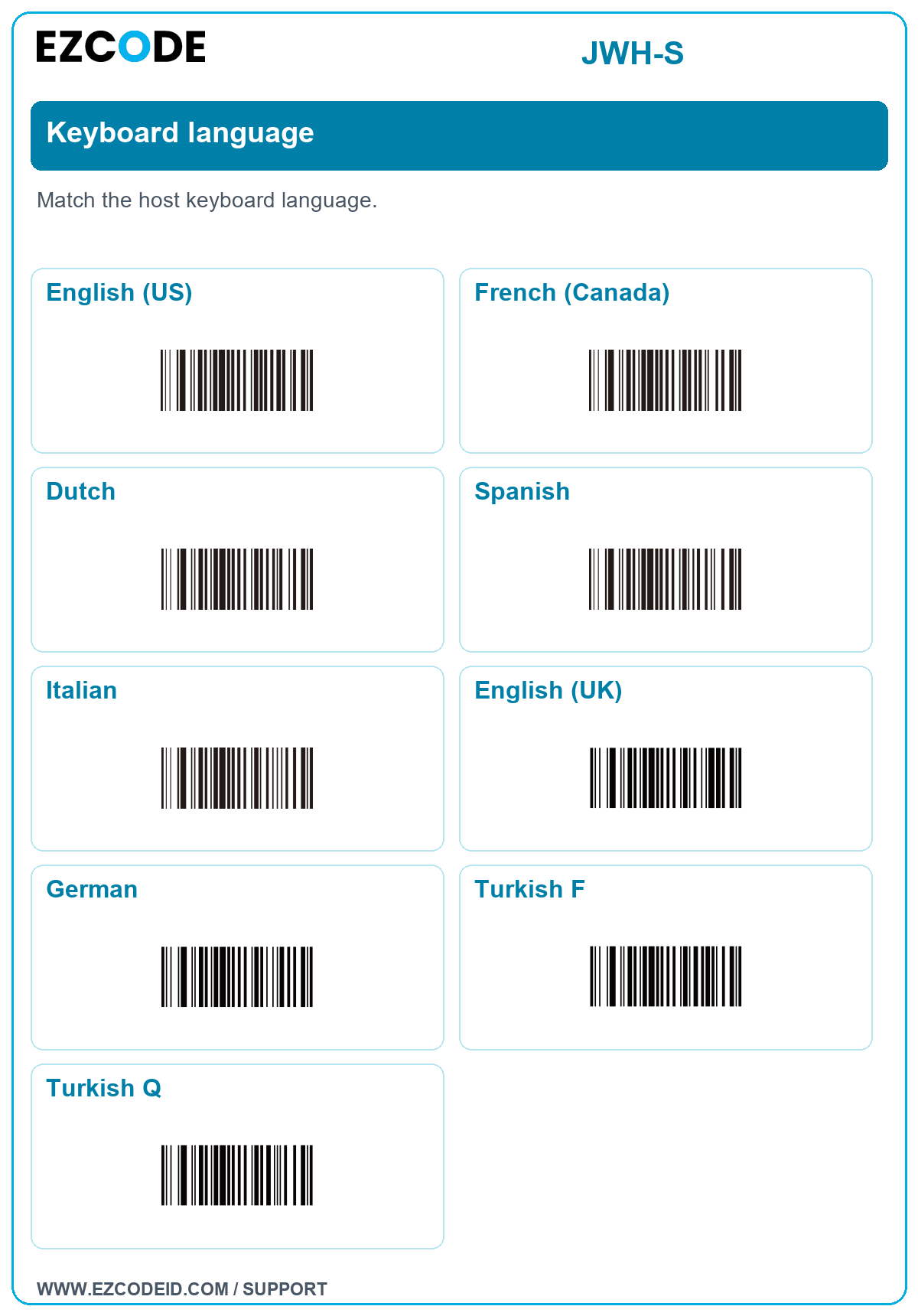
Keyboard language
Match the host keyboard language.
Open / save group imageEnglish (US)
French (Canada)
Dutch
Spanish
Italian
English (UK)
German
Turkish F
Turkish Q
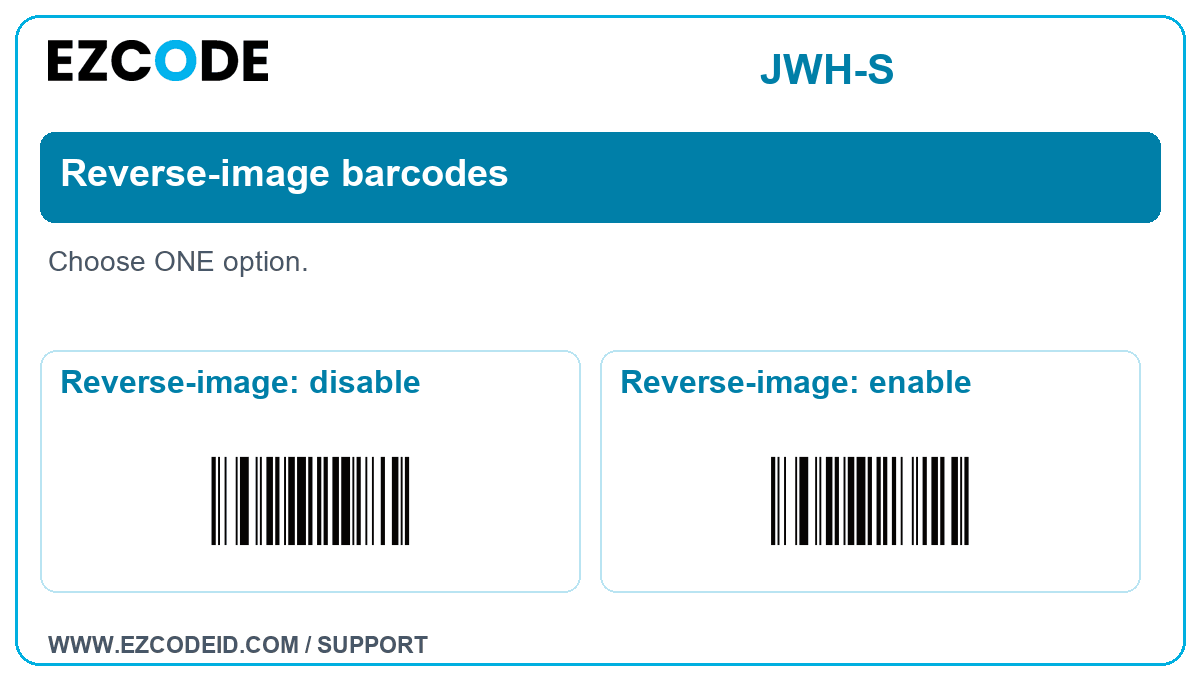
Reverse-image barcodes
Choose ONE option.
Open / save group imageReverse-image: disable
Reverse-image: enable
Back to SupportAdvanced settings & character tables
Change barcode formats only when required by your application. For custom text, enter the prefix/suffix setting, scan the required characters in order, then scan the exit/quit code. Clearing or hiding characters changes the data sent to your software.
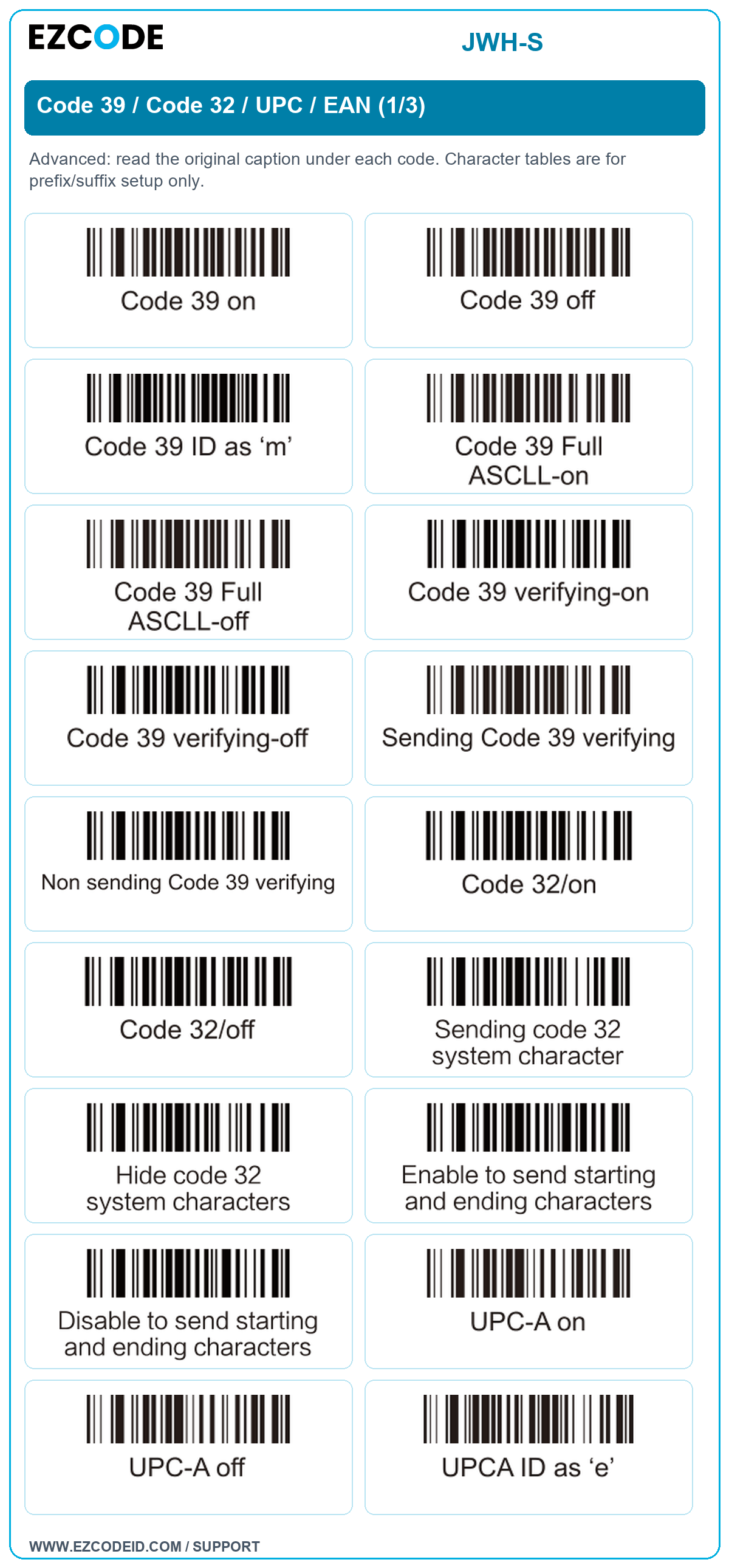
Code 39 / Code 32 / UPC / EAN (1/3)
Advanced: read the original caption under each code. Character tables are for prefix/suffix setup only.
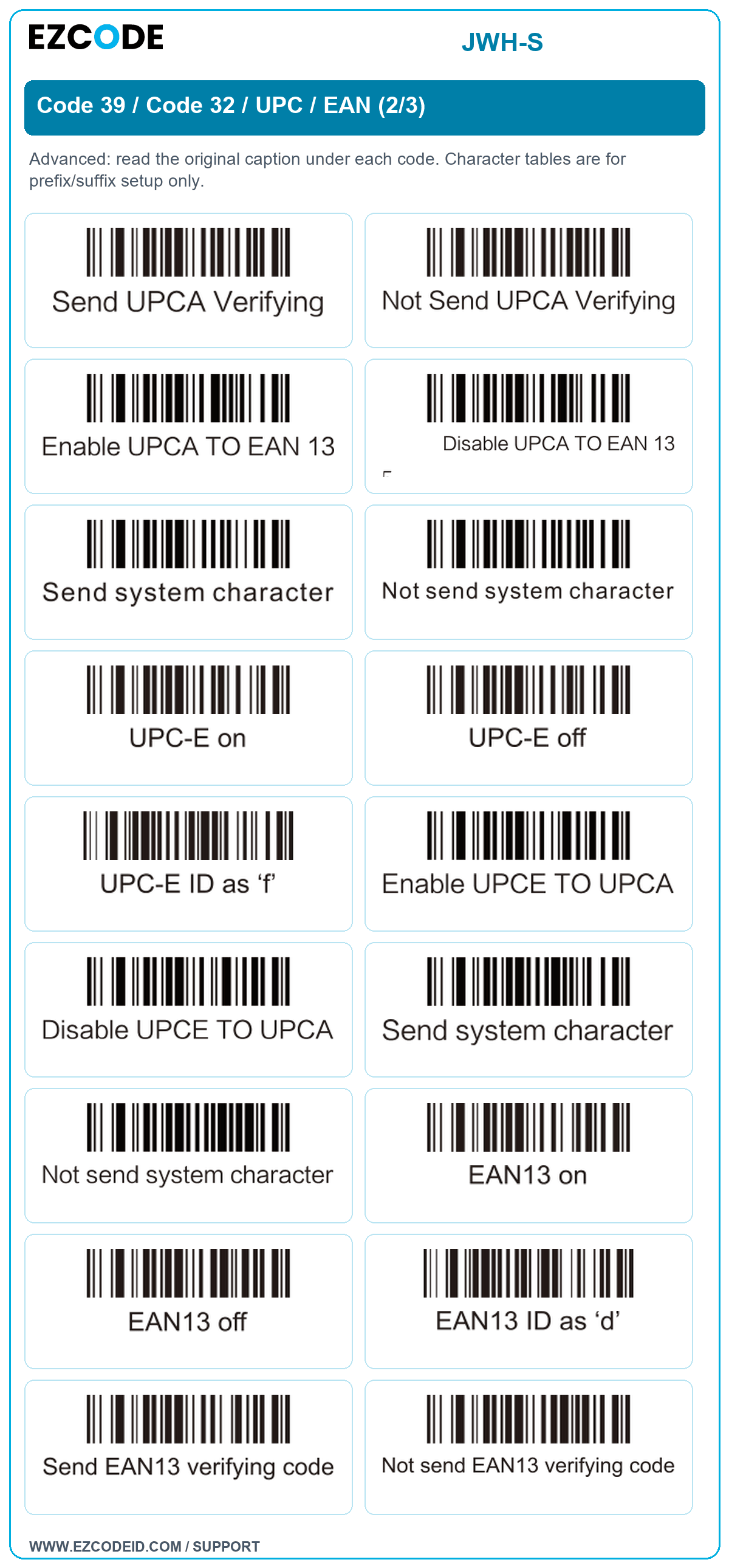
Open / save group imageCode 39 / Code 32 / UPC / EAN (2/3)
Advanced: read the original caption under each code. Character tables are for prefix/suffix setup only.
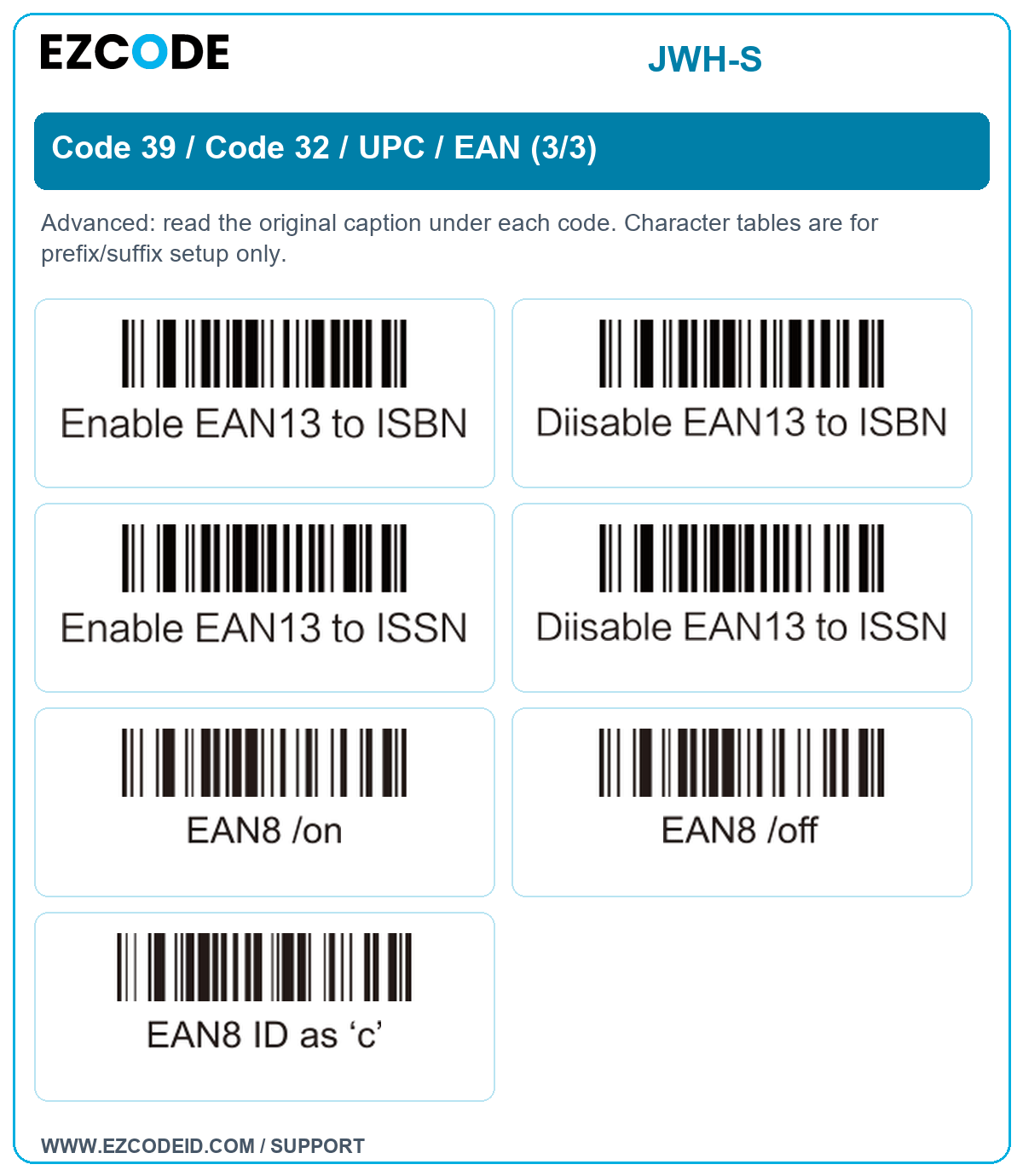
Open / save group imageCode 39 / Code 32 / UPC / EAN (3/3)
Advanced: read the original caption under each code. Character tables are for prefix/suffix setup only.
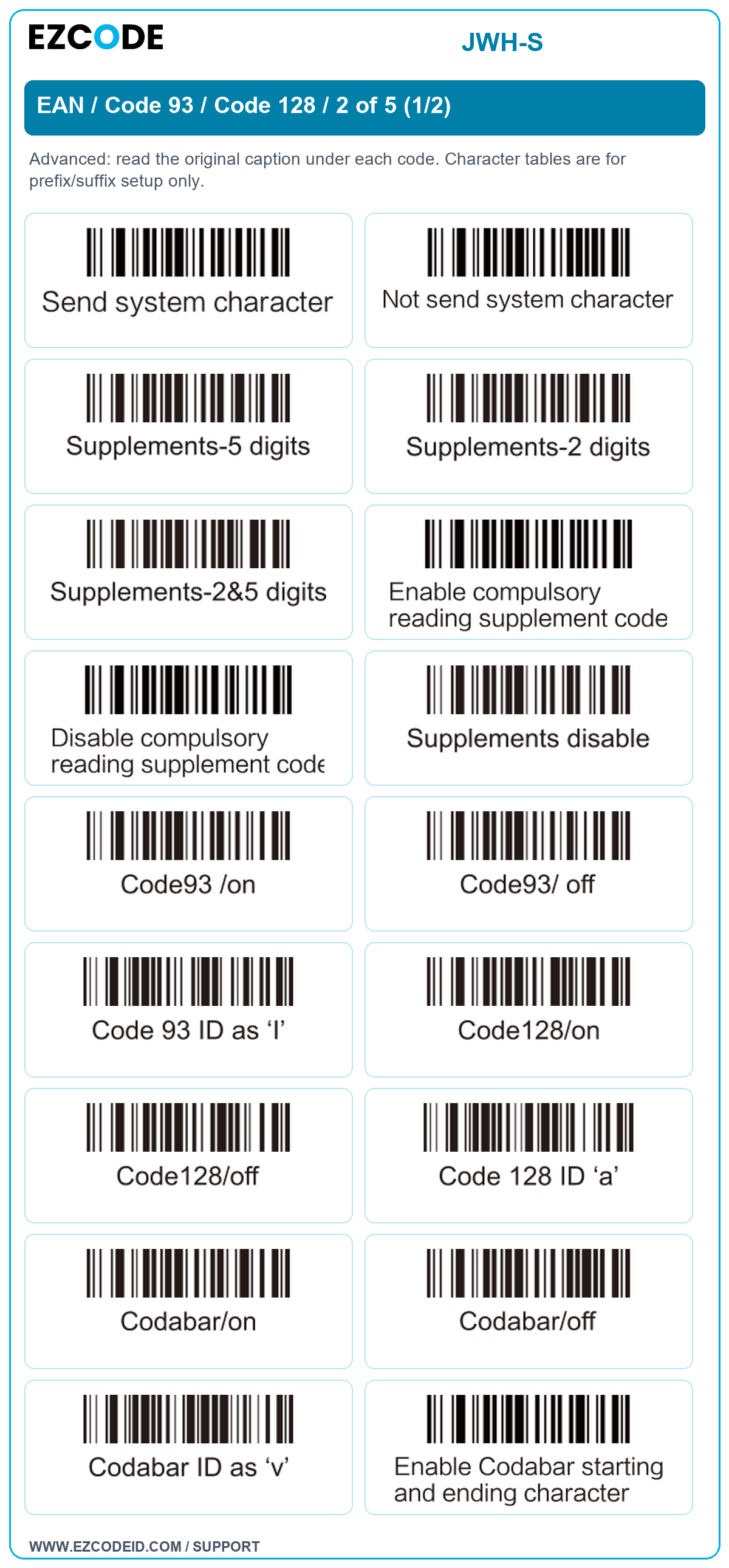
Open / save group imageEAN / Code 93 / Code 128 / 2 of 5 (1/2)
Advanced: read the original caption under each code. Character tables are for prefix/suffix setup only.
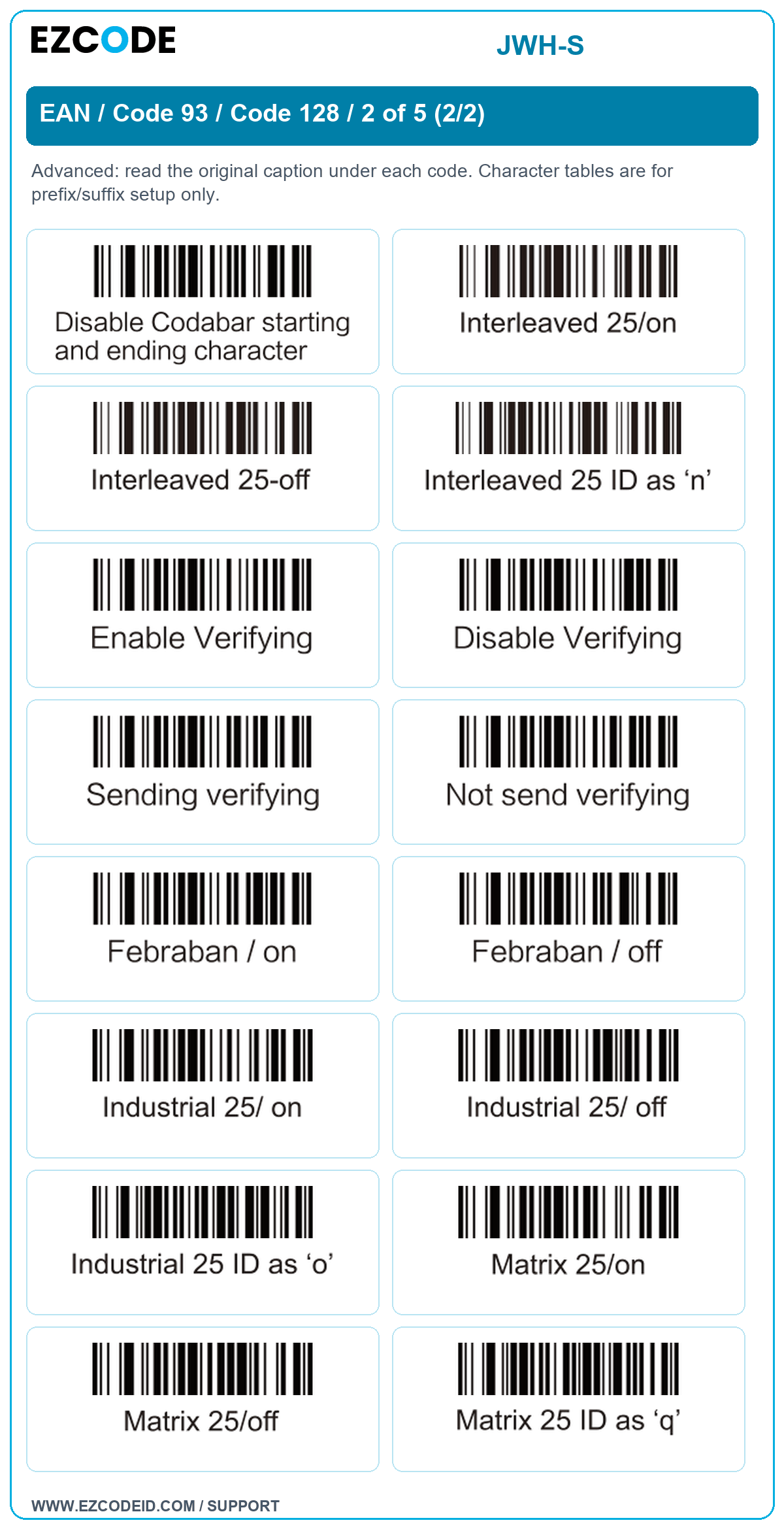
Open / save group imageEAN / Code 93 / Code 128 / 2 of 5 (2/2)
Advanced: read the original caption under each code. Character tables are for prefix/suffix setup only.
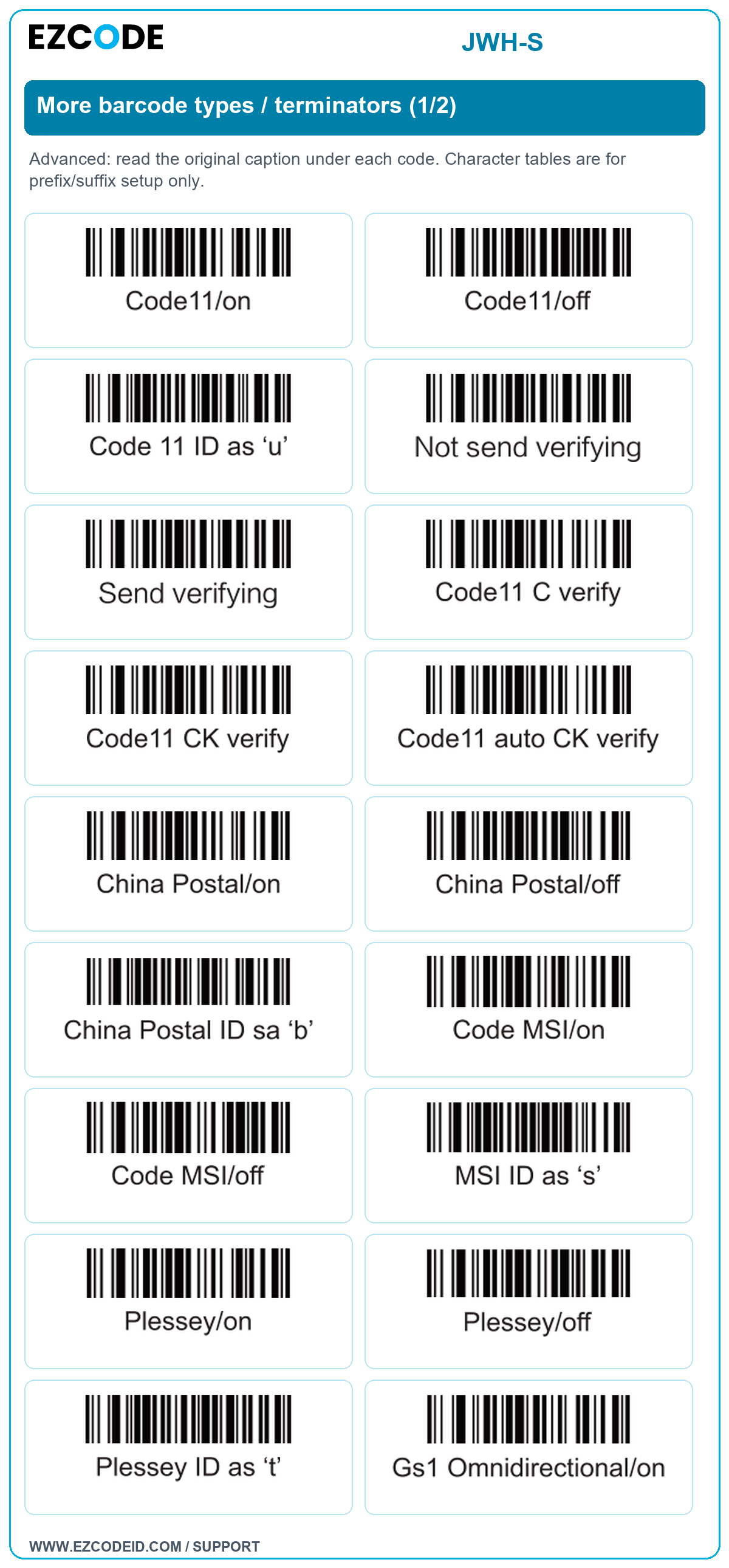
Open / save group imageMore barcode types / terminators (1/2)
Advanced: read the original caption under each code. Character tables are for prefix/suffix setup only.
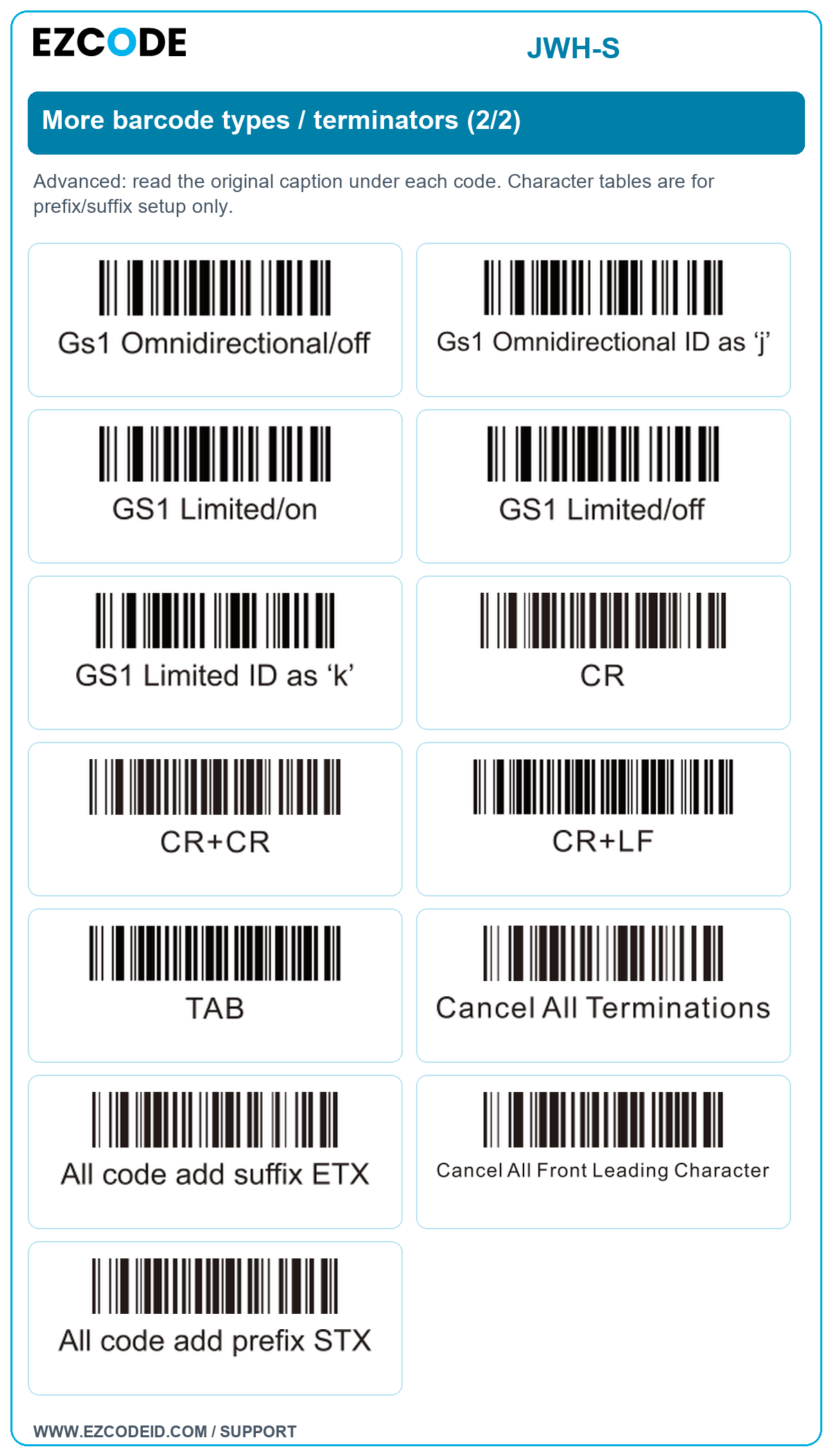
Open / save group imageMore barcode types / terminators (2/2)
Advanced: read the original caption under each code. Character tables are for prefix/suffix setup only.
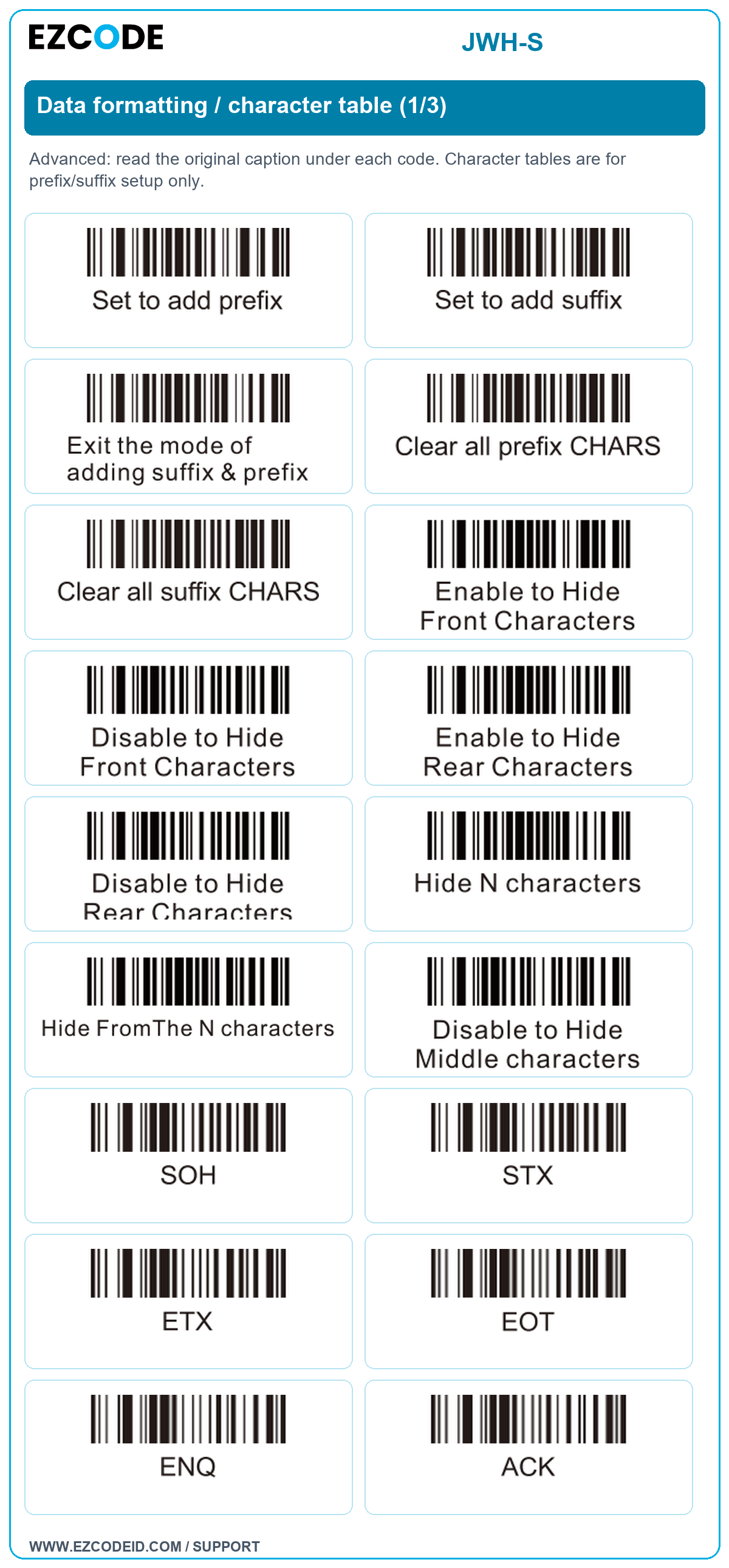
Open / save group imageData formatting / character table (1/3)
Advanced: read the original caption under each code. Character tables are for prefix/suffix setup only.
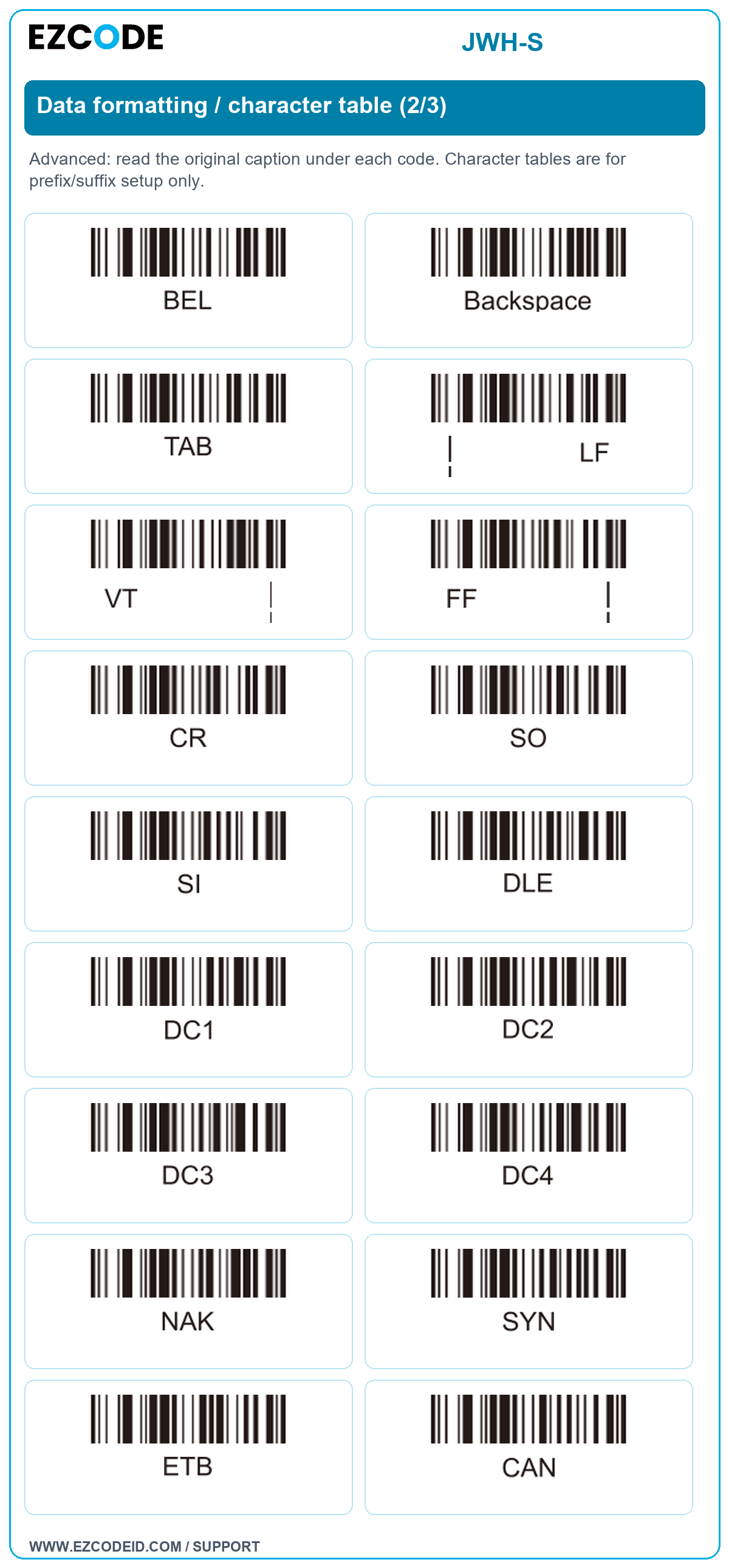
Open / save group imageData formatting / character table (2/3)
Advanced: read the original caption under each code. Character tables are for prefix/suffix setup only.
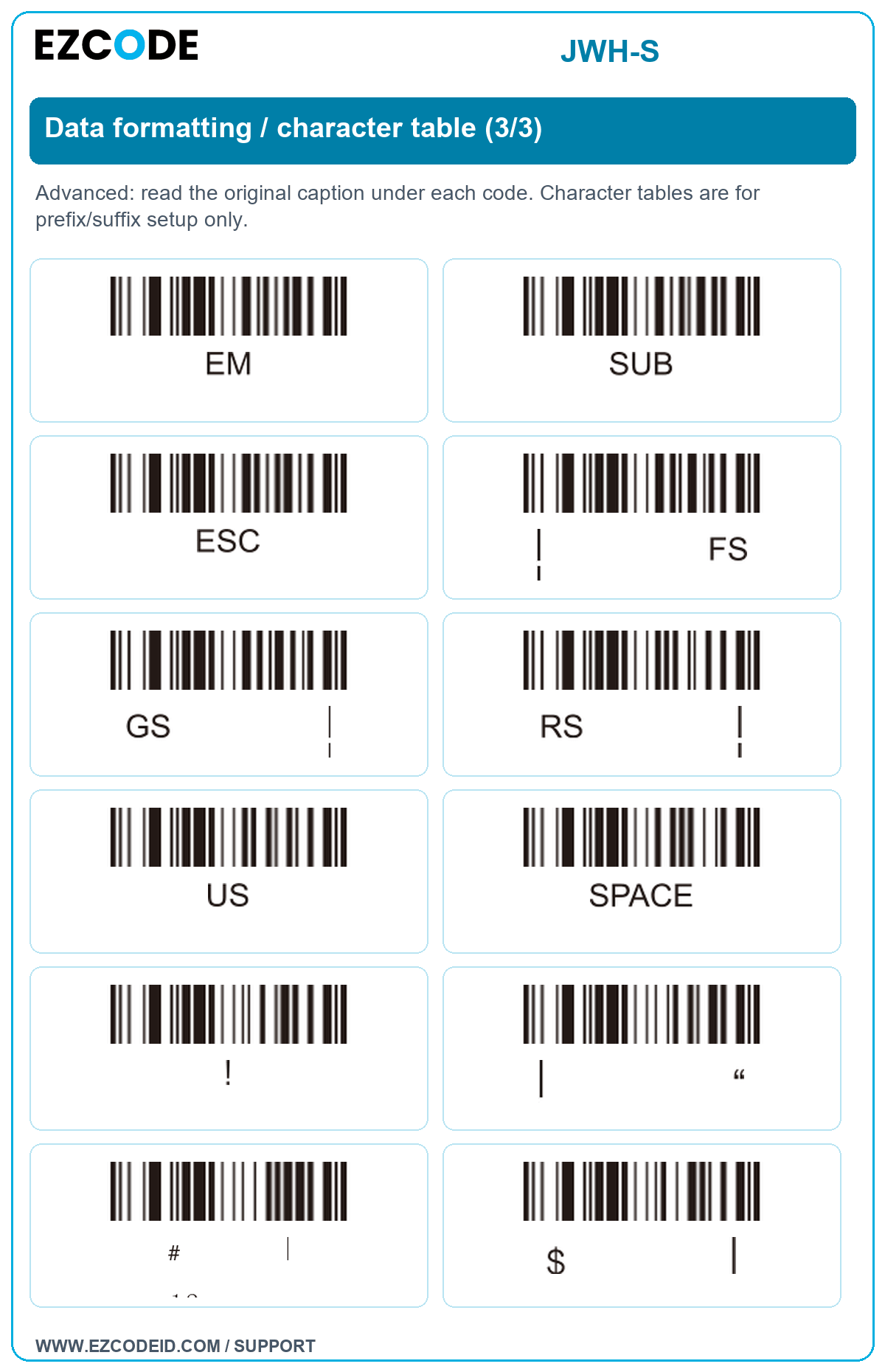
Open / save group imageData formatting / character table (3/3)
Advanced: read the original caption under each code. Character tables are for prefix/suffix setup only.
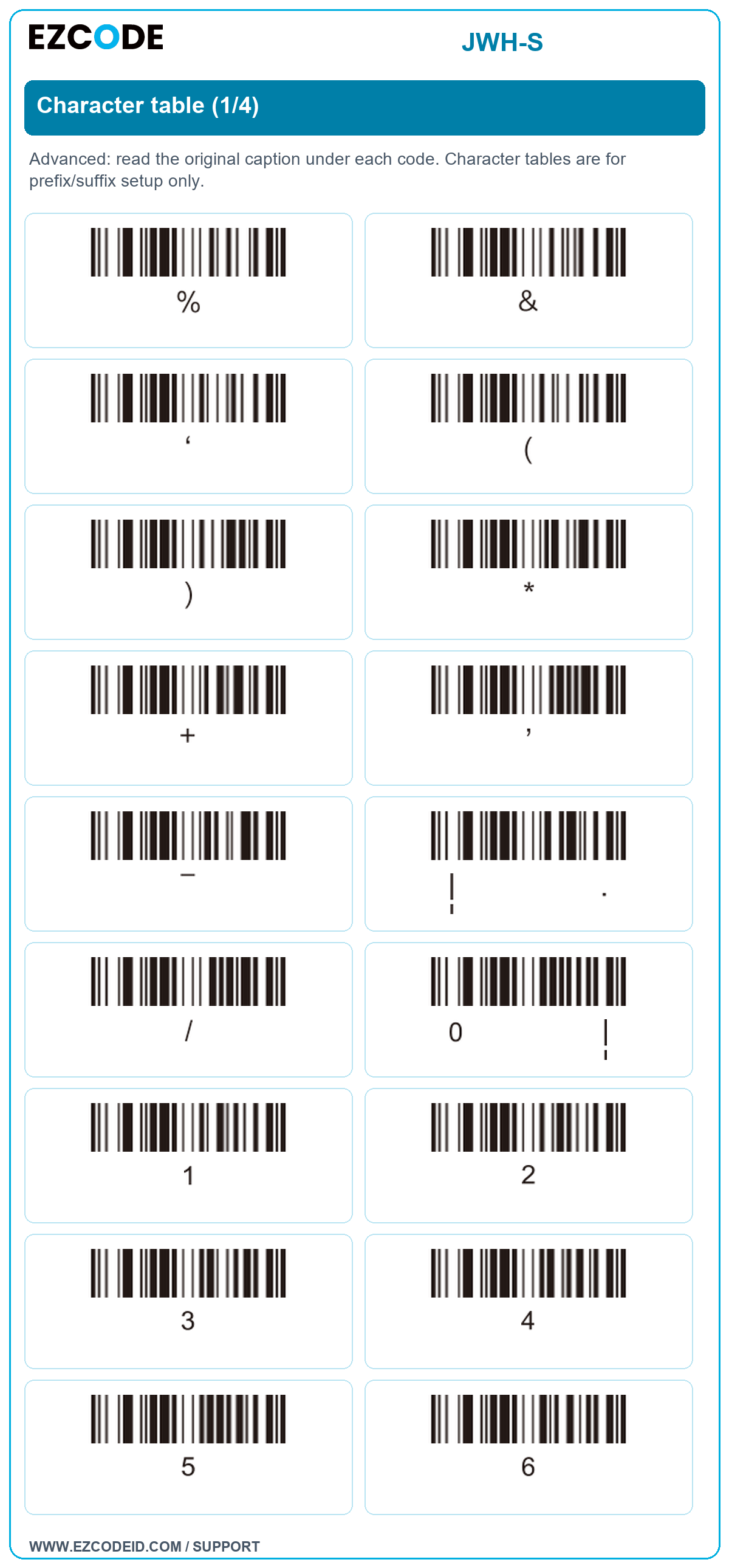
Open / save group imageCharacter table (1/4)
Advanced: read the original caption under each code. Character tables are for prefix/suffix setup only.
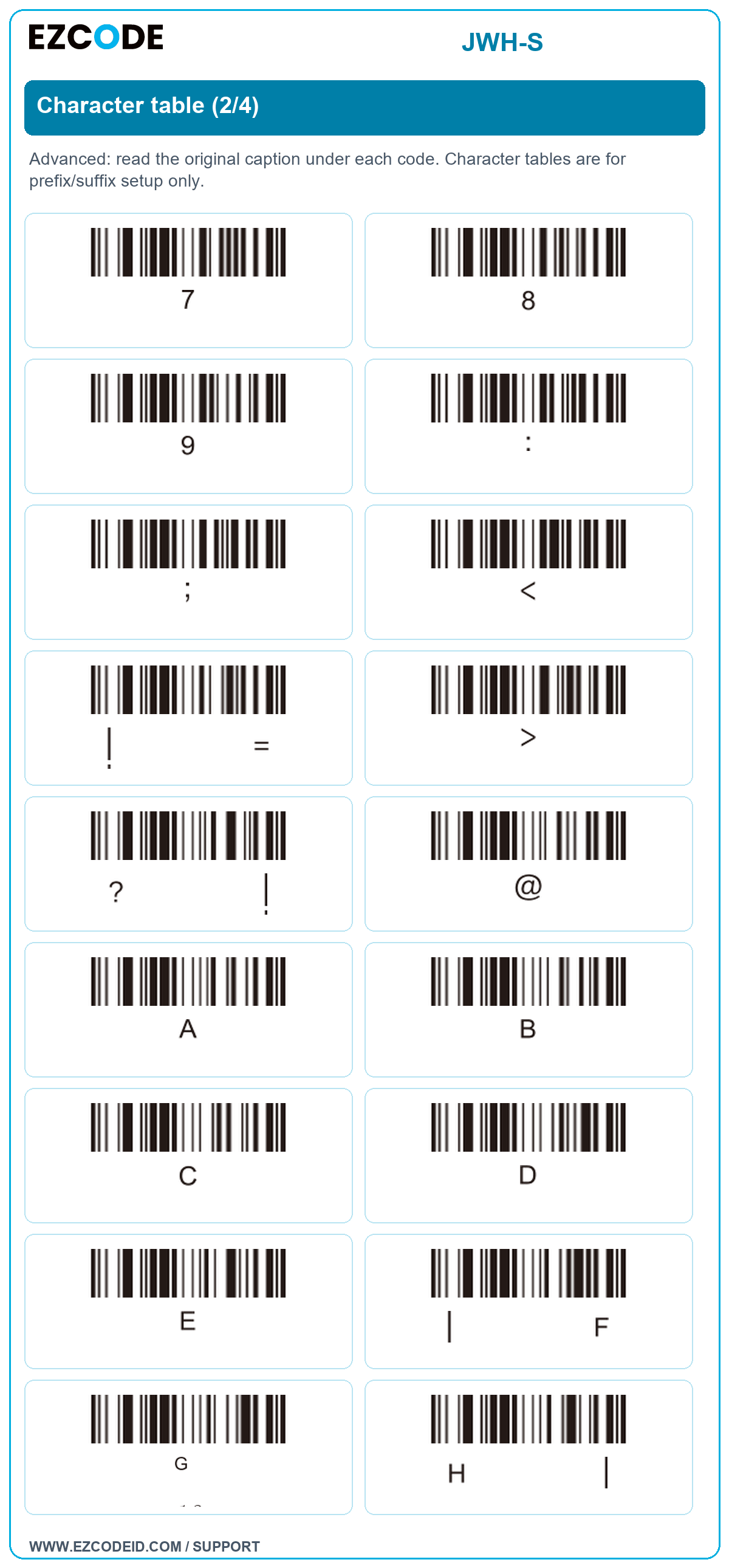
Open / save group imageCharacter table (2/4)
Advanced: read the original caption under each code. Character tables are for prefix/suffix setup only.
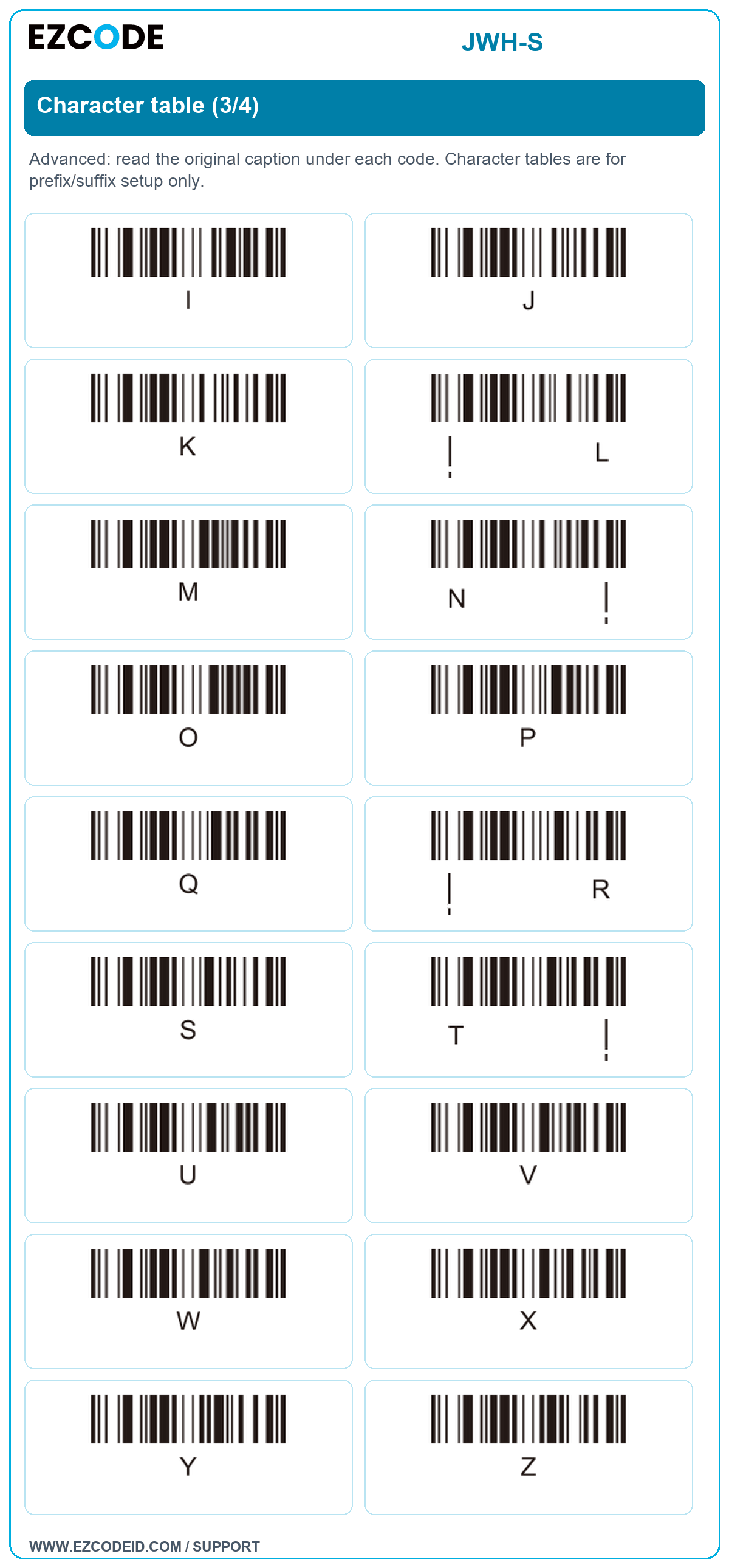
Open / save group imageCharacter table (3/4)
Advanced: read the original caption under each code. Character tables are for prefix/suffix setup only.
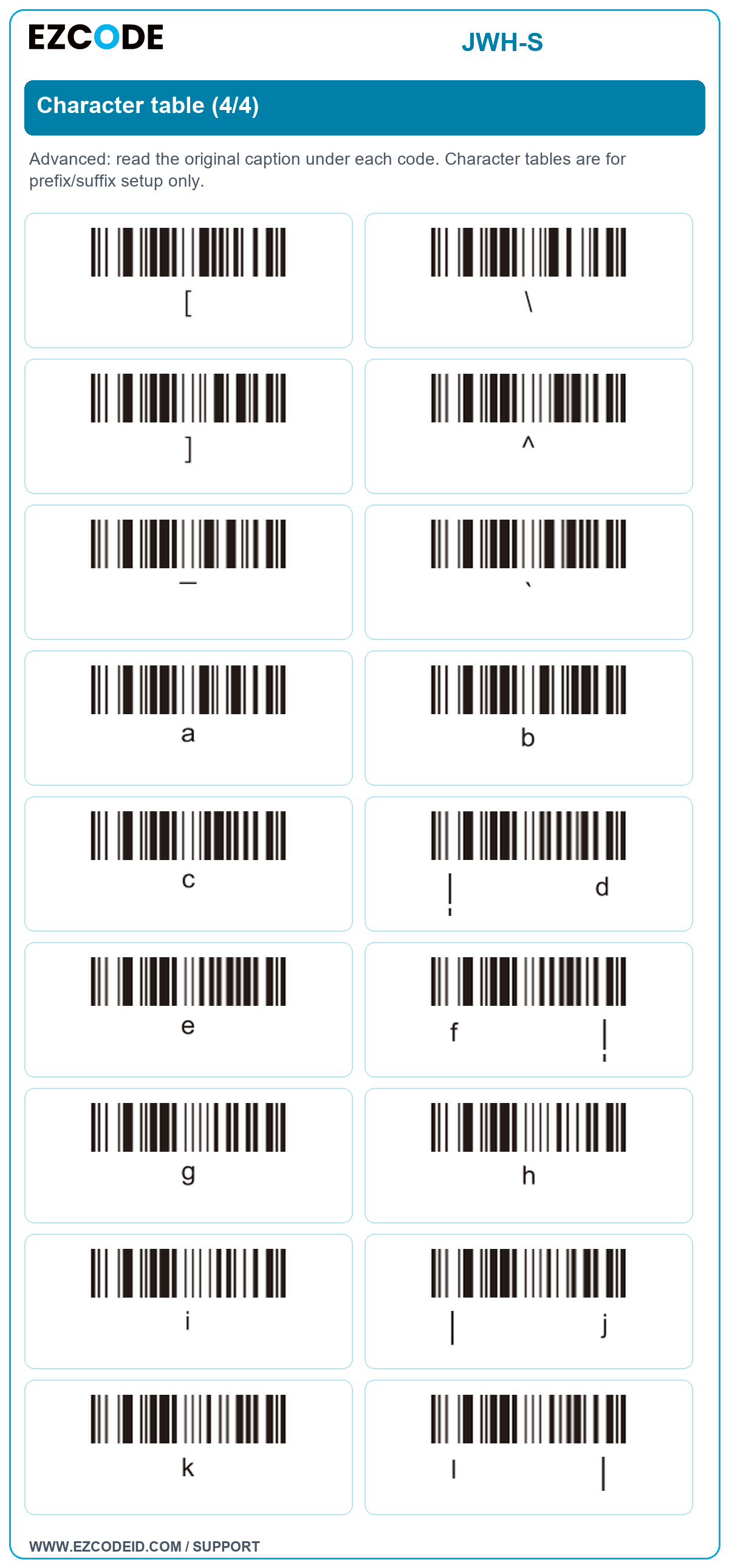
Open / save group imageCharacter table (4/4)
Advanced: read the original caption under each code. Character tables are for prefix/suffix setup only.
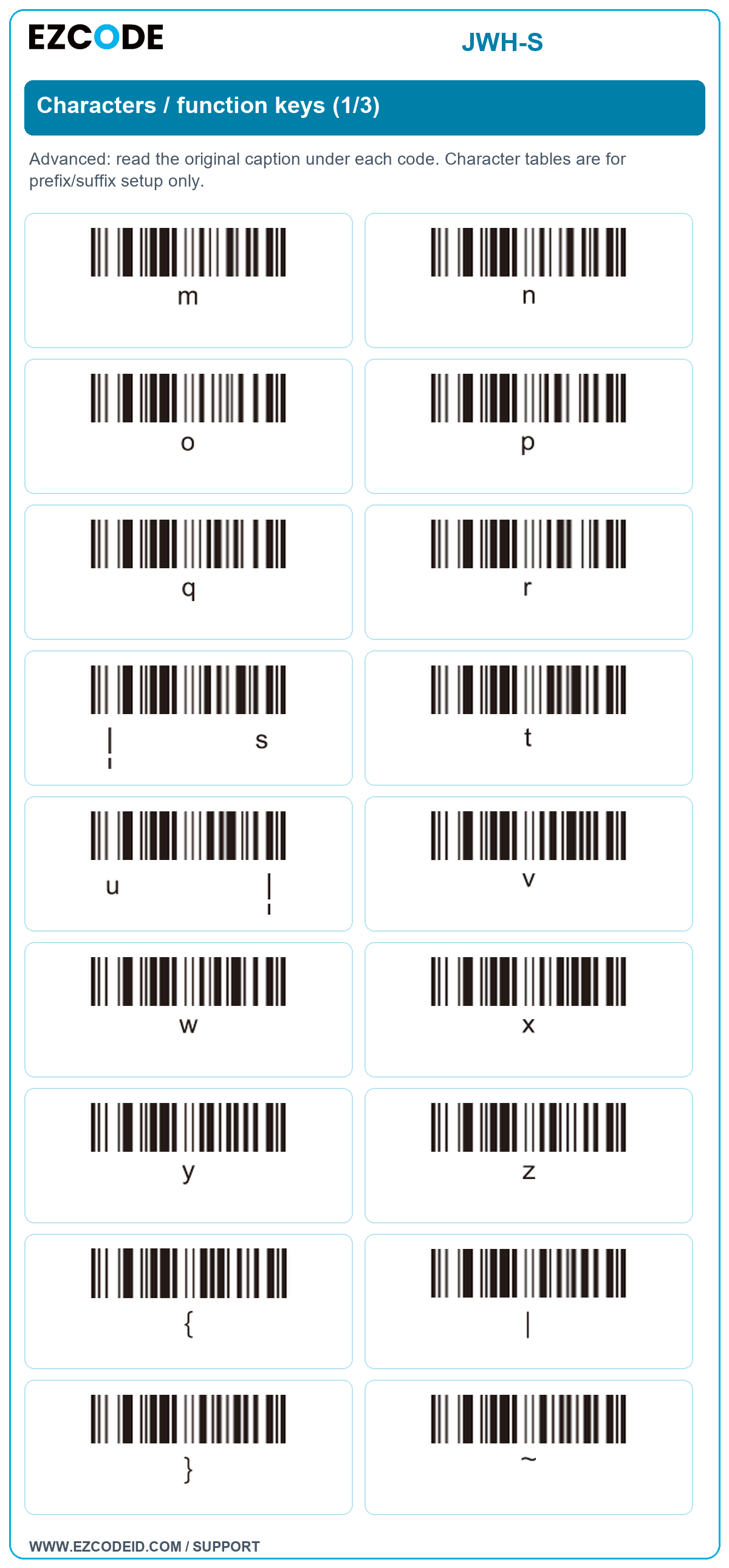
Open / save group imageCharacters / function keys (1/3)
Advanced: read the original caption under each code. Character tables are for prefix/suffix setup only.
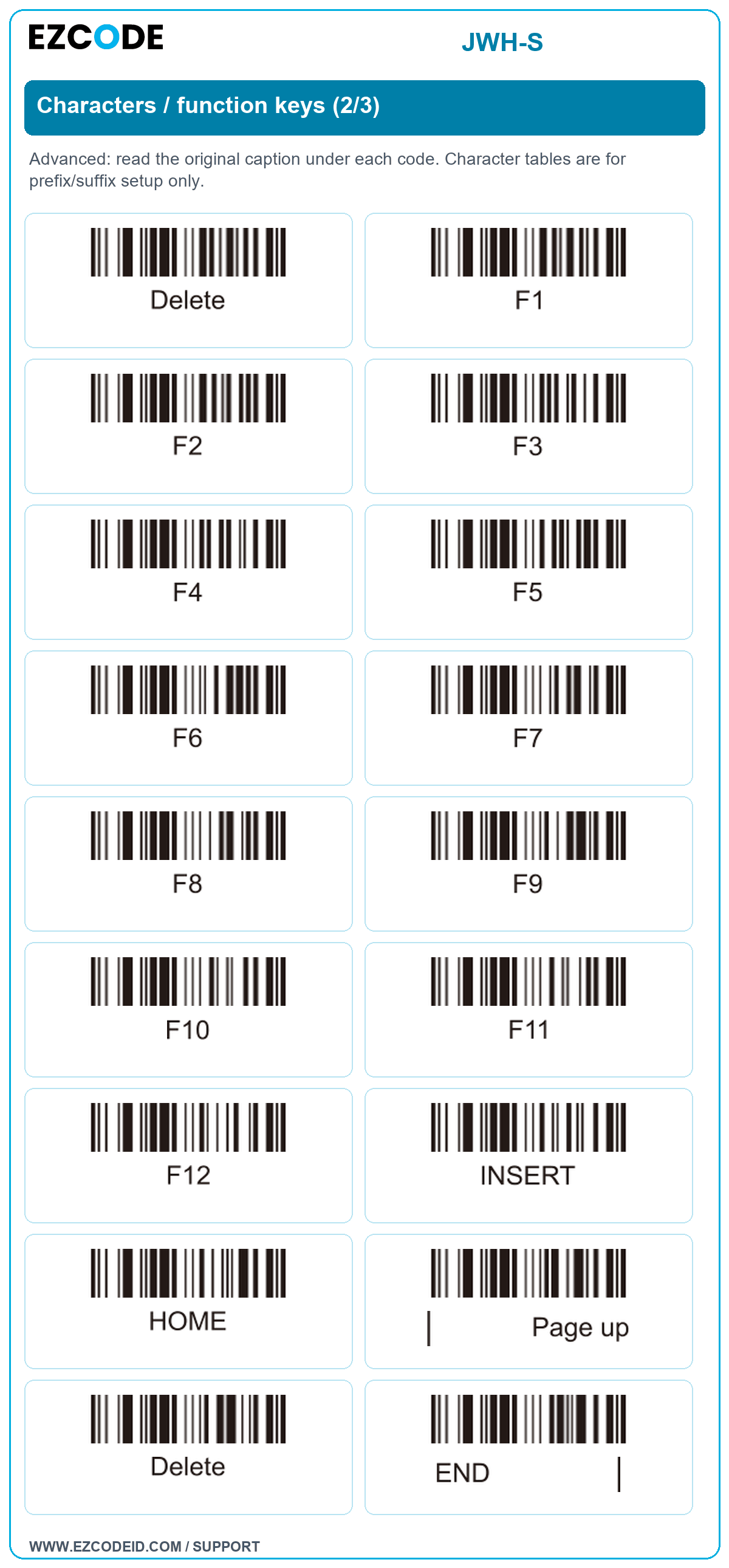
Open / save group imageCharacters / function keys (2/3)
Advanced: read the original caption under each code. Character tables are for prefix/suffix setup only.
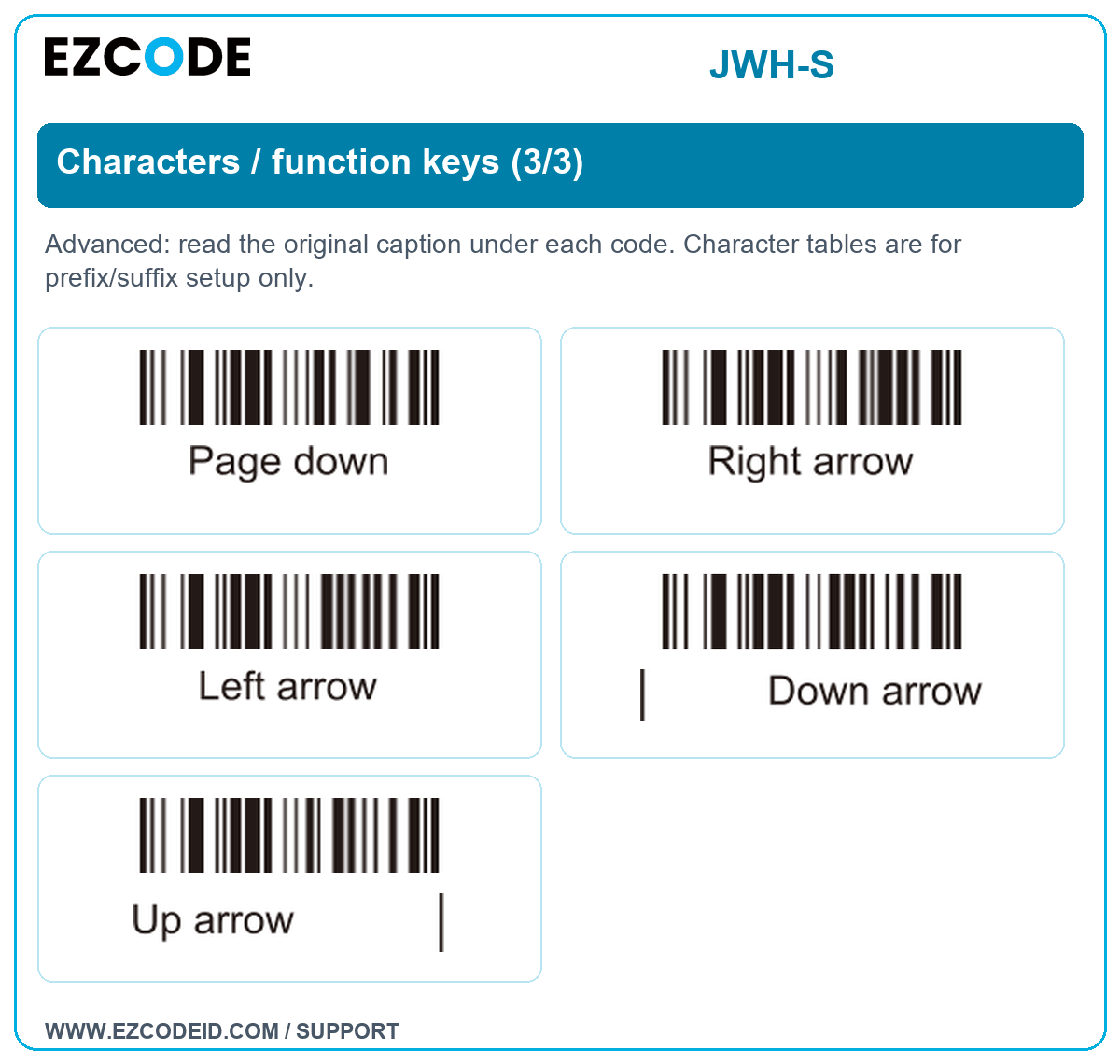
Open / save group imageCharacters / function keys (3/3)
Advanced: read the original caption under each code. Character tables are for prefix/suffix setup only.
Open / save group image